How to Use the Scoreboard Command in Minecraft
This Minecraft tutorial explains how to use the /scoreboard command with step-by-step instructions.
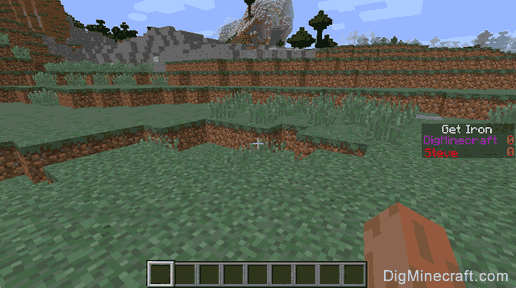
You can manage objectives, players and teams using the /scoreboard command in Minecraft. This is one of the most feature-rich commands in the game.
Let’s explore how to use this cheat (game command).
Supported Platforms
The /scoreboard command is available in the following versions of Minecraft:
| Platform | Supported (Version*) |
|---|---|
 Java Edition (PC/Mac) Java Edition (PC/Mac) |
Yes (1.5) |
 Pocket Edition (PE) Pocket Edition (PE) |
Yes (1.7.0) |
 Xbox 360 Xbox 360 |
No |
 Xbox One Xbox One |
Yes (1.7.0) |
 PS3 PS3 |
No |
 PS4 PS4 |
Yes (1.14.0) |
 Wii U Wii U |
No |
 Nintendo Switch Nintendo Switch |
Yes (1.7.0) |
 Windows 10 Edition Windows 10 Edition |
Yes (1.7.0) |
 Education Edition Education Edition |
Yes (1.9.0) |
* The version that it was added or removed, if applicable.
NOTE: Pocket Edition (PE), Xbox One, PS4, Nintendo Switch, and Windows 10 Edition are now called Bedrock Edition. We will continue to show them individually for version history.
Requirements
To run game commands in Minecraft, you have to turn cheats on in your world.
Scoreboard Command
- Java
- PE
- Xbox
- PS
- Nintendo
- Win10
- Edu
Scoreboard Command in Minecraft Java Edition (PC/Mac)
In Minecraft Java Edition (PC/Mac), there are different syntaxes for managing objectives, teams and players.
Managing Objectives
To add an objective:
To remove an objective:
To list all objectives:
To set how the objectives are displayed:
Definitions for Objectives
-
objective is the name of the objective that is used internally in Minecraft. It can not contain spaces.
criteria is the type of objective. It can be one of the following:
slot determines where the scores will be displayed in the game. It can be one of the following:
Managing Teams
(Starting in Minecraft 1.13, use the /team command instead of the /scoreboard command to manage teams)
To add a team (in Minecraft 1.12 and older):
To remove a team (in Minecraft 1.12 and older):
To assign a player to a team (in Minecraft 1.12 and older):
* If no player is provided then the player running the command will join the team.
To remove a player from a team (in Minecraft 1.12 and older):
* If no player is provided then the player running the command will leave the team.
To remove all players from a team (in Minecraft 1.12 and older):
To list all teams (in Minecraft 1.12 and older):
To list all players on a team (in Minecraft 1.12 and older):
To assign a color to a team (in Minecraft 1.12 and older):
To turn on/off friendly fire on a team (in Minecraft 1.12 and older):
To manage the visibility of nametags for players on a team (in Minecraft 1.12 and older):
To manage the visibility of death messages for players on a team (in Minecraft 1.12 and older):
Definitions for Teams
- teamName is the name of the team that is used internally in Minecraft. It can not contain spaces.
- displayName is optional. It is the name of the team that players will see. There can be spaces in the name. If no displayName is provided, the teamName will be used when displaying the objective on the screen.
- teamColor is the color to assign to the team. It can be one of the following values: black, dark_blue, dark_green, dark_aqua, dark_red, dark_purple, gold, gray, dark_gray, blue, green, aqua, red, light_purple, yellow, white
nametagOption determines how nametags will be displayed for players on the team. It can be one of the following values:
messageOption determines how death message will be displayed for players on the team. It can be one of the following values:
Managing Players
To list all players who are tracked on the scoreboard:
To list all scores for a player:
To list all scores for all players:
To set the score (for an objective) for a player:
To set the score (for an objective) for all players:
To increment a score by <count> for a player:
To increment a score by <count> for all players:
To decrement a score by <count> for a player:
To decrement a score by <count> for all players:
To delete a score for a player:
To delete a score for all players:
To delete all scores for a player:
To delete all scores for all players:
To test whether a score falls within the range <min> and <max> (inclusive) for a player:
To test whether a score falls within the range <min> and <max> (inclusive) for all players:
To enable a player to use the /trigger command on a trigger objective:
To add a tag to a player (in Minecraft 1.12 and older):
(Starting in Minecraft 1.13, use the /tag command to add a tag to a player)
To remove a tag from a player (in Minecraft 1.12 and older):
(Starting in Minecraft 1.13, use the /tag command to remove a tag from a player)
To list the tags for a player (in Minecraft 1.12 and older):
(Starting in Minecraft 1.13, use the /tag command to list the tags for a player)
Definitions for Players
- player is the name of the player (or a target selector).
- objective is the name of the objective used internally in Minecraft.
- score is numeric value to assign to the objective.
- dataTag is optional. It is a compound NBT tag (formerly called data tag) for the player. See NBT tags for player.
- count is the value to add or subtract from a player’s score for an objective (depending on whether the add or remove parameter is used in the command).
- min is a numeric value.
- max is optional. It is a numeric value. If max is not specified, it defaults to 2147483647.
Scoreboard Command in Minecraft Pocket Edition (PE)
In Minecraft Pocket Edition (PE), there are different syntaxes for managing objectives and players.
Managing Objectives
To add an objective:
To remove an objective:
To list all objectives:
To set how the objectives are displayed:
Definitions for Objectives
- objective is the name of the objective that is used internally in Minecraft. It can not contain spaces.
- displayName is optional. It is the name of the objective that players will see. There can be spaces in the name. If no displayName is provided, the objective will be used when displaying the objective on the screen.
- ascending sorts the objectives in ascending order.
- descending sorts the objectives in descending order.
Managing Players
To list all players who are tracked on the scoreboard:
To list all scores for a player:
To set the score (for an objective) for a player:
To increment a score by <count> for a player:
To decrement a score by <count> for a player:
To delete a score for a player:
To delete all scores for a player:
To test whether a score falls within the range <min> and <max> (inclusive) for a player:
To create a random score that falls within the range <min> and <max> (inclusive) for a player:
To perform an operation on a target player’s score:
Definitions for Players
- player is the name of the player (or a target selector).
- objective is the name of the objective used internally in Minecraft.
- score is numeric value to assign to the objective.
- count is the value to add or subtract from a player’s score for an objective (depending on whether the add or remove parameter is used in the command).
- min is a numeric value.
- max is optional. It is a numeric value.
- targetName is the name of the player (or a target selector) to perform an operation on.
- targetObjective is the name of the objective to perform an operation on.
operation is the operation to perform. It can be one of the following:
Scoreboard Command in Minecraft Xbox One Edition
In Minecraft Xbox One Edition, there are different syntaxes for managing objectives and players.
Managing Objectives
To add an objective:
To remove an objective:
To list all objectives:
To set how the objectives are displayed:
Definitions for Objectives
- objective is the name of the objective that is used internally in Minecraft. It can not contain spaces.
- displayName is optional. It is the name of the objective that players will see. There can be spaces in the name. If no displayName is provided, the objective will be used when displaying the objective on the screen.
- ascending sorts the objectives in ascending order.
- descending sorts the objectives in descending order.
Managing Players
To list all players who are tracked on the scoreboard:
To list all scores for a player:
To set the score (for an objective) for a player:
To increment a score by <count> for a player:
To decrement a score by <count> for a player:
To delete a score for a player:
To delete all scores for a player:
To test whether a score falls within the range <min> and <max> (inclusive) for a player:
To create a random score that falls within the range <min> and <max> (inclusive) for a player:
To perform an operation on a target player’s score:
Definitions for Players
- player is the name of the player (or a target selector).
- objective is the name of the objective used internally in Minecraft.
- score is numeric value to assign to the objective.
- count is the value to add or subtract from a player’s score for an objective (depending on whether the add or remove parameter is used in the command).
- min is a numeric value.
- max is optional. It is a numeric value.
- targetName is the name of the player (or a target selector) to perform an operation on.
- targetObjective is the name of the objective to perform an operation on.
operation is the operation to perform. It can be one of the following:
Scoreboard Command in Minecraft PS4 Edition
In Minecraft PS4 Edition, there are different syntaxes for managing objectives and players.
Managing Objectives
To add an objective:
To remove an objective:
To list all objectives:
To set how the objectives are displayed:
Definitions for Objectives
- objective is the name of the objective that is used internally in Minecraft. It can not contain spaces.
- displayName is optional. It is the name of the objective that players will see. There can be spaces in the name. If no displayName is provided, the objective will be used when displaying the objective on the screen.
- ascending sorts the objectives in ascending order.
- descending sorts the objectives in descending order.
Managing Players
To list all players who are tracked on the scoreboard:
To list all scores for a player:
To set the score (for an objective) for a player:
To increment a score by <count> for a player:
To decrement a score by <count> for a player:
To delete a score for a player:
To delete all scores for a player:
To test whether a score falls within the range <min> and <max> (inclusive) for a player:
To create a random score that falls within the range <min> and <max> (inclusive) for a player:
To perform an operation on a target player’s score:
Definitions for Players
- player is the name of the player (or a target selector).
- objective is the name of the objective used internally in Minecraft.
- score is numeric value to assign to the objective.
- count is the value to add or subtract from a player’s score for an objective (depending on whether the add or remove parameter is used in the command).
- min is a numeric value.
- max is optional. It is a numeric value.
- targetName is the name of the player (or a target selector) to perform an operation on.
- targetObjective is the name of the objective to perform an operation on.
operation is the operation to perform. It can be one of the following:
Scoreboard Command in Minecraft Nintendo Switch Edition
In Minecraft Nintendo Switch Edition, there are different syntaxes for managing objectives and players.
Managing Objectives
To add an objective:
To remove an objective:
To list all objectives:
To set how the objectives are displayed:
Definitions for Objectives
- objective is the name of the objective that is used internally in Minecraft. It can not contain spaces.
- displayName is optional. It is the name of the objective that players will see. There can be spaces in the name. If no displayName is provided, the objective will be used when displaying the objective on the screen.
- ascending sorts the objectives in ascending order.
- descending sorts the objectives in descending order.
Managing Players
To list all players who are tracked on the scoreboard:
To list all scores for a player:
To set the score (for an objective) for a player:
To increment a score by <count> for a player:
To decrement a score by <count> for a player:
To delete a score for a player:
To delete all scores for a player:
To test whether a score falls within the range <min> and <max> (inclusive) for a player:
To create a random score that falls within the range <min> and <max> (inclusive) for a player:
To perform an operation on a target player’s score:
Definitions for Players
- player is the name of the player (or a target selector).
- objective is the name of the objective used internally in Minecraft.
- score is numeric value to assign to the objective.
- count is the value to add or subtract from a player’s score for an objective (depending on whether the add or remove parameter is used in the command).
- min is a numeric value.
- max is optional. It is a numeric value.
- targetName is the name of the player (or a target selector) to perform an operation on.
- targetObjective is the name of the objective to perform an operation on.
operation is the operation to perform. It can be one of the following:
Scoreboard Command in Minecraft Windows 10 Edition
In Minecraft Windows 10 Edition, there are different syntaxes for managing objectives and players.
Managing Objectives
To add an objective:
To remove an objective:
To list all objectives:
To set how the objectives are displayed:
Definitions for Objectives
- objective is the name of the objective that is used internally in Minecraft. It can not contain spaces.
- displayName is optional. It is the name of the objective that players will see. There can be spaces in the name. If no displayName is provided, the objective will be used when displaying the objective on the screen.
- ascending sorts the objectives in ascending order.
- descending sorts the objectives in descending order.
Managing Players
To list all players who are tracked on the scoreboard:
To list all scores for a player:
To set the score (for an objective) for a player:
To increment a score by <count> for a player:
To decrement a score by <count> for a player:
To delete a score for a player:
To delete all scores for a player:
To test whether a score falls within the range <min> and <max> (inclusive) for a player:
To create a random score that falls within the range <min> and <max> (inclusive) for a player:
To perform an operation on a target player’s score:
Definitions for Players
- player is the name of the player (or a target selector).
- objective is the name of the objective used internally in Minecraft.
- score is numeric value to assign to the objective.
- count is the value to add or subtract from a player’s score for an objective (depending on whether the add or remove parameter is used in the command).
- min is a numeric value.
- max is optional. It is a numeric value.
- targetName is the name of the player (or a target selector) to perform an operation on.
- targetObjective is the name of the objective to perform an operation on.
operation is the operation to perform. It can be one of the following:
Scoreboard Command in Minecraft Education Edition
In Minecraft Education Edition, there are different syntaxes for managing objectives and players.
Managing Objectives
To add an objective:
To remove an objective:
To list all objectives:
To set how the objectives are displayed:
Definitions for Objectives
- objective is the name of the objective that is used internally in Minecraft. It can not contain spaces.
- displayName is optional. It is the name of the objective that players will see. There can be spaces in the name. If no displayName is provided, the objective will be used when displaying the objective on the screen.
- ascending sorts the objectives in ascending order.
- descending sorts the objectives in descending order.
Managing Players
To list all players who are tracked on the scoreboard:
To list all scores for a player:
To set the score (for an objective) for a player:
To increment a score by <count> for a player:
To decrement a score by <count> for a player:
To delete a score for a player:
To delete all scores for a player:
To test whether a score falls within the range <min> and <max> (inclusive) for a player:
To create a random score that falls within the range <min> and <max> (inclusive) for a player:
To perform an operation on a target player’s score:
Definitions for Players
- player is the name of the player (or a target selector).
- objective is the name of the objective used internally in Minecraft.
- score is numeric value to assign to the objective.
- count is the value to add or subtract from a player’s score for an objective (depending on whether the add or remove parameter is used in the command).
- min is a numeric value.
- max is optional. It is a numeric value.
- targetName is the name of the player (or a target selector) to perform an operation on.
- targetObjective is the name of the objective to perform an operation on.
operation is the operation to perform. It can be one of the following:
Congratulations, you have learned how to use the /scoreboard command in Minecraft.
Scoreboard Examples
Here are some Scoreboard examples that you can try yourself in Minecraft:
[Гайд] Команда /scoreboard [1/2]
![[Гайд] Команда /scoreboard [1/2]](https://ru-minecraft.ru/uploads/posts/2014-03/1394515558_bez-imeni-3.jpg)
Итак, давайте попробуем определиться с тем, для чего нужна эта замечательная команда. Упрощённое определение находится ниже.
Scoreboard — это достаточно простая, комплексная система игровой механики, предназначенная в основном для создателей карт и владельцев серверов.
Сегодня мы разберём подкоманду objectives. Она нужна для сбора игровой статистики. Это значит, что те, или иные действия в игре будут суммироваться и записываться в наш счёт.
Итак, давайте создадим нашу первую статистику:
/scoreboard objectives add <названиеСтатистики> <критерийСтатистики>[отображаемоеИмяСтатистики]
Обязательные и дополнительные параметры:
Просмотреть все имеющиеся в системе счета:
/scoreboard objectives list
Удалить статистику:
/scoreboard objectives remove
Сейчас мы разобрали самые простые команды, которые потребуются нам в первую очередь. Теперь давайте попробуем вручную изменить значение созданного ранее счёта:
/scoreboard players set <Игрок>
Добавить определённое количество очков в статистику:
/scoreboard players add <Игрок>
Удалить определённое количество очков из статистики:
/scoreboard players remove <Игрок>
Полностью сбросить значения всех счетов игрока:
/scoreboard players reset
Теперь давайте попробуем вывести значения переменных на экран. Например, для создания PvP арены или похожих механизмов:
/scoreboard objectives setdisplay <Место/Слот>[названиеСтатистики]
Теперь давайте рассмотрим те самые критерии для статистик. Они разобраны ниже.
Значения статистик также могут быть проверены командой /testfor с помощью параметров score_<названиеСтатистики>=X и score_<названиеСтатистики>_min=X. Сами параметры разобраны ниже.
Scoreboard Operations
Scoreboards can be used to perform complex operations, similar to Molang. Operations come in two flavors: mathematical, and logical.
Overview #
Operations are performed using the /scoreboard players operation command. The full syntax is laid out below:
The command consists of two score holders: The target score, and the source score. The target score is the value being operated on, and the source score is the value affecting the operation. The result of the operation is written into the target score, and the source score's value is not touched, save for one operation.
Mathematical Operators #
Mathematical operators use arithmetic to affect the target score. There are five mathematical operations available: addition, subtraction, multiplication, floor division, and floor modulo division.
For each of the following examples below, assume that score holder A var equals 25, and B var equals 10.
Addition #
Operator: +=
This operation adds the target score and source scores together, then stores the sum into the target score.
A = A + B , and as such 25 + 10 = 35 .
Subtraction #
Operator: -=
This operation subtracts the target score by the source score, then stores the difference into the target score.
A = A — B , and as such 25 — 10 = 15 .
Multiplication #
Operator: *=
This operation multiplies the target score by the source score, then stores the product into the target score.
A = A * B , and as such 25 * 10 = 250 .
Floored Division #
Operator: /=
This operation divides the target score by the source score, then stores the quotient into the target score. Because score values can only be integers, the value is floored, or rounded down.
A = floor(A / B) , and as such floor(25 / 10) = 2 .
Floored Modulo Division #
Operator: %=
This operation also divides the target score by the source score, but instead returns the remainder after the division into the target score. This is also floored.
A = floor(mod(A, B)) , and as such floor(mod(25, 10)) = 5 .
Logical Operators #
Logical operations use logic gates and assignments to affect the target score. There are four logical operations available: assignment, less than, greater than, and swap.
Similar to the above, assume that score holder A var equals 25, and B var equals 10.
Assignment Operator #
Operator: =
This operation sets the target score equal to the source score.
A = B , and as such the result is 10 .
Minimum Operator #
Operator: <
This operation returns the smallest of the input scores, and stores it into the target score.
A = min(A, B) , and as such min(25, 10) = 10 .
Maximum Operator #
Operator: >
This operation returns the largest of the input scores, and stores it into the target score.
A = max(A, B) , and as such max(25, 10) = 25 .
Swap Operator #
Operator: ><
This operation swaps the target score and source scores with each other. This is the only operation that affects the source score.
The above command would swap the values of A and B e.g.
Before: A = 10; B = 25;
After: A = 25; B = 10;
This can be seen as three operations: temp = A; A = B; B = temp; , and as such A var = 10 and B var = 25 .
Useful Creations #
Check If Values are Equal #
If you want to check in scoreboard, whether one value equals another value, you can copy first value to temporary value, subtract the other and compare temporary value to zero. Given values A and B:
Scoreboard Initialization #
If you want to initialize a scoreboard value to 0, but only if it doesn't exists, you can use scoreboard players add <selector> <name> 0 . It will set the value to 0, if it doesn't exist on the entity and do nothing, if it already exist.
КАК РАБОТАЕТ КОМАНДА /scoreboard в Minecraft 1.7
Недавно вышла новая версия Minecraft 1.7 , где нам добавили много крутых фишек, а также команду /scoreboard. Эта команда поможет нам отслеживать действия игрока в определенном углу экрана в Майнкрафт .
Чтобы пользоваться этой командой: перейдите на экспериментальный режим при создании мира в Minecraft Bedrock Edition .
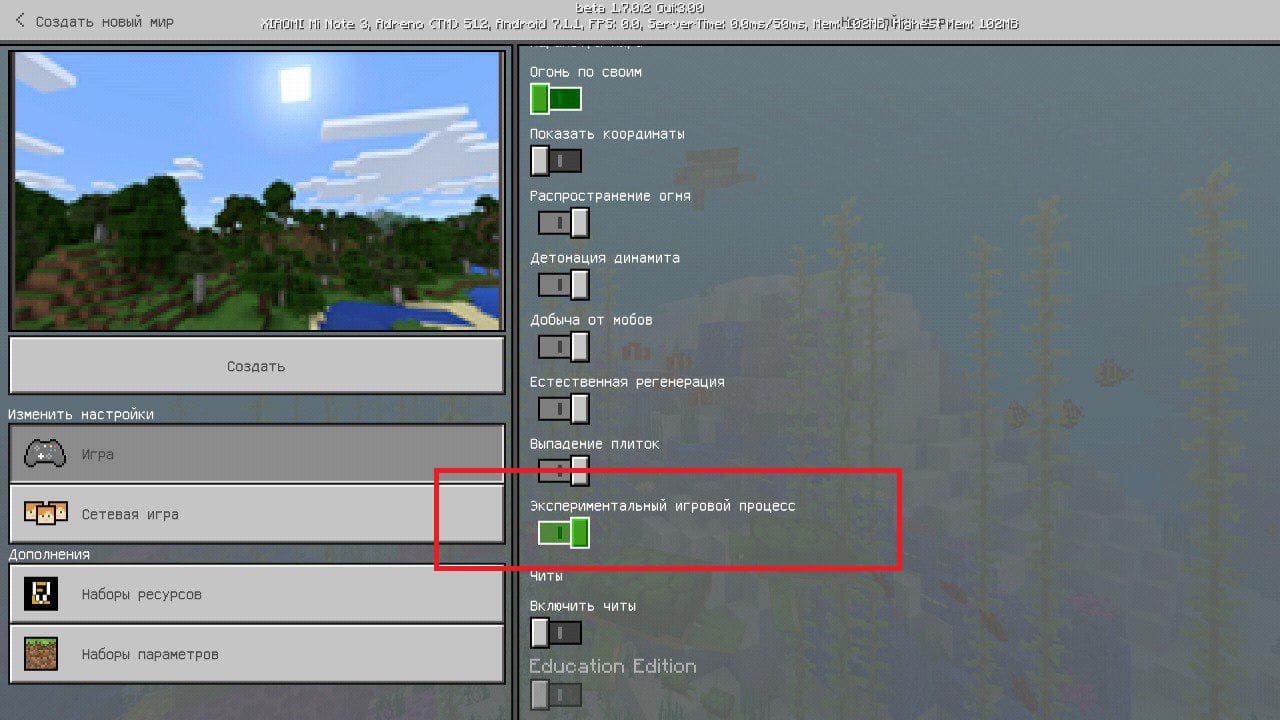
Вводя команду /scoreboard вас будет просить дополнить к ней два слова: objecrives (настройка/создание табла) и players (настройка игрока в табле). 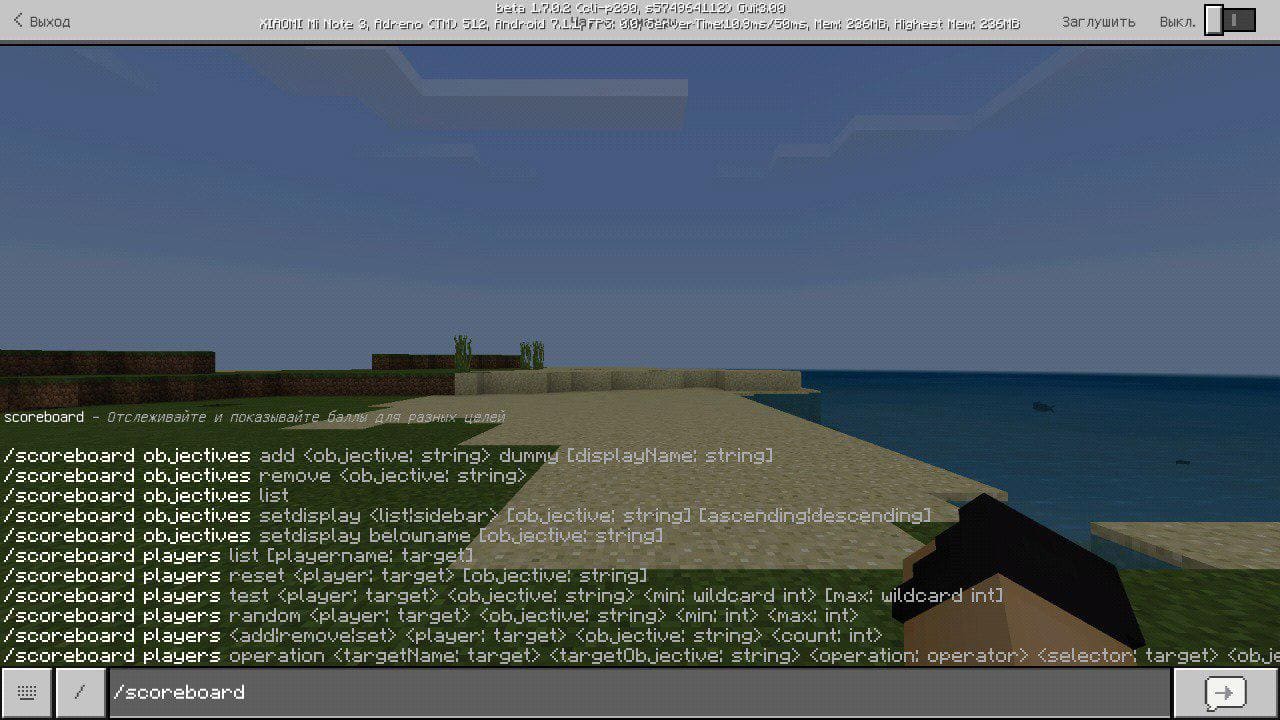 Для начала нам нужно создать таблицу (табло), для этого пишем в чат Майнкрафта: /scoreboard objecrives add A (A- название самого табла в системе) dummy Peworld (Peworld- название которое будет отображаться).
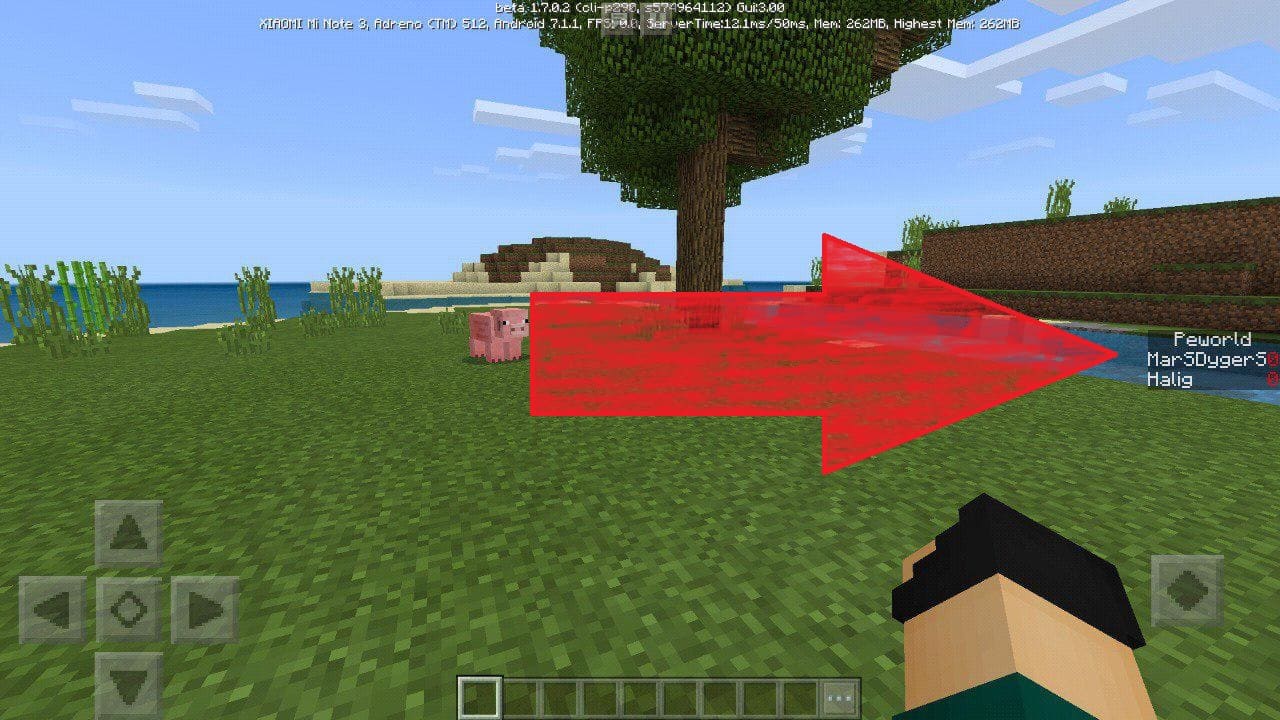
  Мы создали scoreboard в системе мира, теперь осталось добавить в него игроков, для этого пишем: /scoreboard players add MarSDygerS (MarSDygerS- ник) A (A- название самого табла в системе) 0 (0- очко в табле). Таким же путем можно добавить тех игроков, которых нет даже в мире, оно все равно будет отображаться.
  Теперь осталось нам вывести это табло на экран Minecraft , для этого вводим в чат команду: /scoreboard objecrives setdisplay sidebar A (A- название самого табла в системе).
  Все готово, так выглядит табло в Майнкрафт 1.7 .