Sounds
This JSON defines sound events, and defines which sound files they play, the subtitle, etc. Sound events are identified with ResourceLocation s. sounds.json should be located at the root of a resource namespace ( assets/<namespace>/sounds.json ), and it defines sound events in that namespace ( assets/<namespace>/sounds.json defines sound events in the namespace namespace .).
A full specification is available on the vanilla wiki, but this example highlights the important parts:
Underneath the top-level object, each key corresponds to a sound event. Note that the namespace is not given, as it is taken from the namespace of the JSON itself. Each event specifies a localization key to be shown when subtitles are enabled. Finally, the actual sound files to be played are specified. Note that the value is an array; if multiple sound files are specified, the game will randomly choose one to play whenever the sound event is triggered.
The two examples represent two different ways to specify a sound file. The wiki has precise details, but generally, long sound files such as background music or music discs should use the second form, because the “stream” argument tells Minecraft to not load the entire sound file into memory but to stream it from disk. The second form can also specify the volume, pitch, and weight of a sound file.
In all cases, the path to a sound file for namespace namespace and path path is assets/<namespace>/sounds/<path>.ogg . Therefore mymod:open_chest_sound_file points to assets/mymod/sounds/open_chest_sound_file.ogg , and mymod:music/epic_music points to assets/mymod/sounds/music/epic_music.ogg .
A sounds.json can be data generated.
Creating Sound Events
In order to reference sounds on the server, a SoundEvent holding a corresponding entry in sounds.json must be created. This SoundEvent must then be registered. Normally, the location used to create a sound event should be set as it’s registry name.
The SoundEvent acts as a reference to the sound and is passed around to play them. If a mod has an API, it should expose its SoundEvent s in the API.
As long as a sound is registered within the sounds.json , it can still be referenced on the logical client regardless of whether there is a referencing SoundEvent .
Playing Sounds
Vanilla has lots of methods for playing sounds, and it is unclear which to use at times.
Note that each takes a SoundEvent , the ones registered above. Additionally, the terms “Server Behavior” and “Client Behavior” refer to the respective logical side.
Level
playSound(Player, BlockPos, SoundEvent, SoundSource, volume, pitch)
- Simply forwards to overload (2), adding 0.5 to each coordinate of the BlockPos given.
playSound(Player, double x, double y, double z, SoundEvent, SoundSource, volume, pitch)
- Client Behavior: If the passed in player is the client player, plays the sound event to the client player.
- Server Behavior: Plays the sound event to everyone nearby except the passed in player. Player can be null .
- Usage: The correspondence between the behaviors implies that these two methods are to be called from some player-initiated code that will be run on both logical sides at the same time: the logical client handles playing it to the user, and the logical server handles everyone else hearing it without re-playing it to the original user. They can also be used to play any sound in general at any position server-side by calling it on the logical server and passing in a null player, thus letting everyone hear it.
playLocalSound(double x, double y, double z, SoundEvent, SoundSource, volume, pitch, distanceDelay)
How to add custom sounds to resource pack
Adding sounds to a Minecraft resource pack isn’t that complicated but these are some rookie mistakes you can do and should avoid.
Step 1: Add your own sounds.json
To avoid having to merge sounds.json files you should create your own namespace.
In this example we will create one that’s called “yoursound”, let’s start with creating this file:
Here’s we’re telling the game that we have 2 new sounds that are called “example.sound.name_1” and “example.sound.name_2”.
Step 2: Add your sound files
In step 1 we defined 2 new sounds but we need to add the actual sound files, here are the paths:
You can also just put these in your namespace folder and not in the minecraft folder by defining the namespace in the file path.
Step 3: Test your new sounds
Type this command in-game:
If you can hear the sound, you’ve done it all correct and you’re done!
Step 4: More advanced settings
In your sounds.json you can define a ton of settings in each new defined sound, for example we could add a subtitle that shows to the player when they hear the sound:
Now when the player hears example.sound.name_1 they will also get a subtitle above their action bar saying “hello”.
There are only 3 main settings which are:
- replace – if this should replace the sounds in default sounds.json
- subtitle – shows subtitle to the player
- sounds – The sound files this sound event uses. One of the listed sounds is randomly selected to play when this sound event is triggered. Optional.
But within the sounds setting you can also add a bunch of settings:
- name – the url of the sound file excluding the .ogg extension.
- volume – the volume betweenn 0.0 and 1.0, default is 1.0
- pitch – plays the sound at specific pitch, if not defined it will always be 1.0
- weight – the chance that this sound is selected when multiple sounds are defined, default is 1
- stream (true/false) – True if this sound should be streamed directly from the file, set to true if the sound is longer then a few seconds to avoid lag. This is typically used for all the sounds in music and record categories.
- attenuation_distance – Sound reduction rate based on distance, typically used by beacons, portals and conduits. Default is 16.
- preload (true/false) – True if the sound should be loaded when the resource pack is loaded instead of when the sound plays to the user. Defaults to false.
- type (sound or event) – Sound causes the value of “name” to be interpreted as the name of the file path, while event causes the value of “name” to be read as a predefined event in the game. Set to “sound” by default.
Let’s add a more advanced example to our sounds.json
Now we’ve added a third custom sound that does these things:
- Plays 1 out of the 3 .ogg files specified randomly.
- Defaults as a hostile mob sound.
- Each of the .ogg files has it’s own defined volume and pitch.
- The third sound/ogg is 3 times more likely to be played thanks to it’s weight.
If you need more guidance you can read the minecraft wiki sounds.json article, or read more MC Models tutorials.
MC Models is a quality controlled marketplace for primarily 3d models! You can read more about us here.
Mcmodels.net is in no way connected or associated with Minecraft, Mojang or any other game company. Our products are made to be used within a wide range of programs and games. Not specifically Minecraft. Read more in our terms.
Any questions or business requests can be sent to [email protected] or discuss on our Discord.
Greetings Adventurer!
By accepting our cookies you will help all the creators you like on this website and allow you to find exactly what you want by analyzing what you do. We never share your data with third parties (except that we use third parties for specific functionalities, like embedded Youtube videos). By clicking “Accept all cookies”, you consent to the use of all the cookies.
You can go back and change these settings from our Privacy Policy page that you find in the footer on the whole website.
Clicking «Reject all cookies» will make you lose out on website features. We instead recommend that you use Cookie Settings to turn off specific cookie types.
minecraft Modding with Forge Adding custom sounds to your MOD
This example show you how you add new sounds to your MOD and play them. First of all you need a sound file which has the format *.ogg . Any other format is not allowed by the Minecraft application and will be rejected.
The soundfile has the name: sound1.ogg
Put the sound file under the following path:
Replace 'MODID' by the identifier you defined for your MOD
Next you have to create a sounds.json in UTF-8 (Standard) encoding which defines name, resource. and other things for your custom sound. This file will look like:
Please enable JavaScript
As explanation for this sounds.json.
There are defined 2 sounds defined, as I added an example that you can investigate how to add multiply sounds. sound1 has the category player the second is of category ambient which means the volume of the sound is affected by the volume settings the user has set for player/ambient sounds. name is the most important property as it is pointing to the resource of the sound. The MODID is the identifier of your MOD and is mandatory as the Application will search in the resources of your mod for the file, otherwise it will search in the Minecraft resources and will find nothing. The stream property means that the sound will be streamed from file system, which is only needed for sounds longer than 4 seconds.
Your custom sounds.json file has to go under the following path:
Now you will be able to load the sounds to the registry of the game. So you have to create a class which is initializing SoundEvent s and handling the registration.
Sounds
In bedrock, we can add custom sounds without overwriting any vanilla sounds. This is done by adding files to the resource pack.
The best way to learn about sounds is by downloading and playing around with the default resource pack.
Folder Structure #
There are two main files that we edit when we want to add sounds. Note how sound_definition is nested inside sounds .
Sound files themselves are added inside of the sounds folder, and can be any of the following formats.
sound_definitions.json #
sound_definitions.json is where we define new sound short-names. This should be thought of as typing a short-name or id to a physical sound path. Here is an example, sound_definitions.json , that adds a new trumpet sound called example.toot :
Sounds added in this way can be triggered using /playsound . Please note that playsound does not auto-correct, so you will need to be careful in your typing.
New files referenced by file path, such as sounds, DO need a complete client restart to load. This means that if sounds don't work, you should restart your entire MC client rather than just reloading the world.
/playsound volume notes #
The game will clamp the sound volume to at most 1.0 before multiplying it with the sound definition's volume.
For /playsound , the maximum hearable range of a sound is given by min(max_distance, max(volume * 16, 16)) . If "max_distance" is not given in the sound's definition, it is equivalent to playsound_volume * 16 .
Approximate sound attenuation by distance. The actual graph might not be linear.
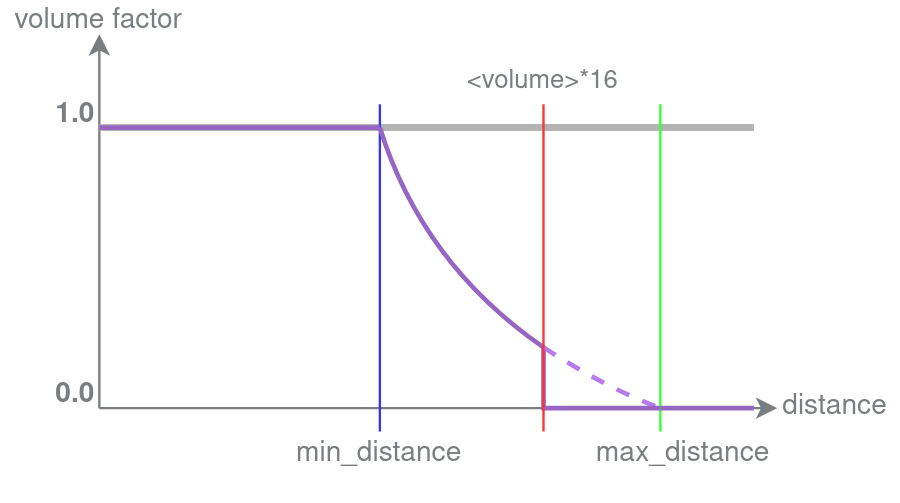
Shown above is the approximate sound attenuation factor by distance for playing sounds with a volume parameter greater than or equal to 1. Notice how the playsound <volume> limits the sound's audible range. The axis distance is the distance of the sound listener (player) to the sound source. The corresponding volume axis' value is the factor for the playsound volume capped to 1, multiplied by the sound definition's volume to get the final volume of the sound you hear. As an expression this could be written as: final_volume = min(playsound_volume, 1) * graph_volume * sound_definition_volume .
Note: Attenuation by distance of the hearable sound's volume is not affected by the volume parameter given in the command.
For example, mob.ghast.affectionate_scream sets "min_distance": 100.0 , but can only be heard from at most 16 blocks away when using /playsound with volume 1 to play it. Specifying a greater volume value increases the audible range. When using a large enough volume to hear the sound farther away, the sound will get quieter only after a distance of more than 100.0.
To make a sound which can be heard far away but also drops in volume continuously over distance, one can add e.g. "volume": 0.01 and use large <volume> values in the playsound command. The high value for the /playsound volume will produce a large audible range (e.g. a volume of 4 is 64 blocks as calculated above), while the low volume will prevent the played sound from capping at 1.0 too soon.
Top Level Keys #
In the example above, I showed two top-level fields: category and sounds . Sounds will be discussed in further detail below, but the other top-level keys will be discussed here:
Categories #
Categories are used internally by the engine to decide how each sound is played. We can utilize different channels to get other effects.
| Category | Note |
|---|---|
| weather | |
| block | |
| bucket | |
| bottle | |
| ui | Sounds in this category will ignore range limit |
| player | |
| hostile | |
| music | |
| record | |
| neutral |
min_distance #
The distance from the sound source after which sound volume is attenuated. Default value: 0.0. It must be a float (eg. 1.0), or the property will be ignored.
max_distance #
The distance from the sound source after which the sound volume is the quietest (if in range). It must be a float (eg. 1.0), or the property will be ignored.
Sound definitions #
In the example above, I showed sounds as simply a list with a single path. This is good for simple sounds but does not have much power. For starts, I can add multiple sounds to the list. These sounds will be randomized when played:
Additionally, we can define each sound as an object instead of a string. This allows us finer control and unlocks some new settings. The string/object style can be mixed and matched.
The path to the file, such as: "sounds/music/game/creative/creative1"
stream #
Limits the sound only to be played a limited number of instances at a time. Will cause the game to not load the entire sound data into memory while playing, but rather in smaller parts while playing, thus using less memory. Good for improving performance on sound heavy worlds.
volume #
How loud the sound should play, from 0.0 to 1.0 . Sounds cannot be made more audible than initially encoded. Set to 1.0 by default. Sounds in custom resource packs can have working values greater than 1.0.
load_on_low_memory #
Forces the loading of the sound even when nearing low memory. "load_on_low_memory" is now deprecated as of 1.16.0
pitch #
The pitch of the sound (how low/high it sounds). Should be a positive value. For example, 2.3 will let the sound play 2.3 times as quickly and thus at higher pitch. Set to 1.0 by default.
true makes the sound directional. Set to true for all sounds by default. Ignored for music and ui sounds. Only sounds with false will play stereo sound.
interruptible #
Set to true by default.
weight #
If there is more than one sound in the list, the sound to be played is chosen randomly. "weight" (integer value like 5) will give the relative chance that this sound is chosen from the list. For example, if there are two sounds in the list, one with "weight": 10 and the other with "weight": 2 , the first will be played approximately 5 times more likely than the second (accurately: 10 / (10 + 2) = 83.3% chance vs. 2 / (10 + 2) = 16.7% chance) . Set to 1 by default.
Example #
Here is a more realistic example containing these options:
sounds.json #
If we want our sounds to run automatically, we can add them into the sounds.json file. This will tie the sound definitions directly to game events and cause them to play without needing to trigger with /playsound .
Sounds can be added into various categories:
| Category | Note |
|---|---|
| individual_event_sounds | Contains sounds like beacon activation, chest-close, or explode |
| block_sounds | Contains hit, step, and break sounds for blocks |
| entity_sounds | Contains death, ambient, hurt, etc. sounds for entities (Including custom ones!) |
| interactive_sounds | WIP |
Adding Entity Sounds #
I assume that sounds can be added in other categories, but I personally only have experience adding sounds into the entities category. Entity sounds are automatically played at various points in the entities life-cycle.
| Events | Note |
|---|---|
| ambient | Played randomly, such as grunts, clucks, or ghast noises |
| hurt | Played when damaged |
| death | Played when it dies |
| step | Played when the entity moves along the ground |
| fall.big | For hitting the ground from a high height |
| fall.small | For hitting the ground from a low height |
| splash | For splashing in the water |
| attack | For melee attacking |
| shoot | For shooting projectiles |
There are also many sound events, which most likely trigger automatically, but which I don't have details for, such as:
| Unknown Categories |
|---|
| breathe |
| splash |
| swim |
| ambient.in.water |
| death.in.water |
| jump |
| eat |
| hurt.in.water |
| mad |
| stare |
| sniff |
| sleep |
| spit |
| warn |
| scream |
Example #
Adding sounds to Animations #
Sounds played in animations function based off of short-name definitions in the RP entity file.