Step-By-Step: How To Play Brawl Stars With A Controller in 2023?
Most of the popular games out there offer some kind of controller support to the player base. Especially in FPS games, using a controller enables us to land our shots more precisely or to use the movement system to the full extent. At the moment, one of my most played games (on mobile) is Brawl Stars, but holding my smartphone for hours is not the ideal situation.
And I’m not the only person who thinks like this. So, is it possible to play Brawl Stars with a controller?
Unfortunately, the game does not offer gamepad support at the moment, and it is not likely to see it quite soon. However, there are a few ways how you can play the game with a controller, even if they do not have Bluetooth built-in. But enough of talking, let’s get into the details.
Download and install an emulator on a PC
Emulators are an excellent method to play a mobile game on your PC or to play older games on a new device. In this case, I used Bluestacks, which is one of the most popular ones out there. At first, we have to download the program from the official website and install it on our PC.
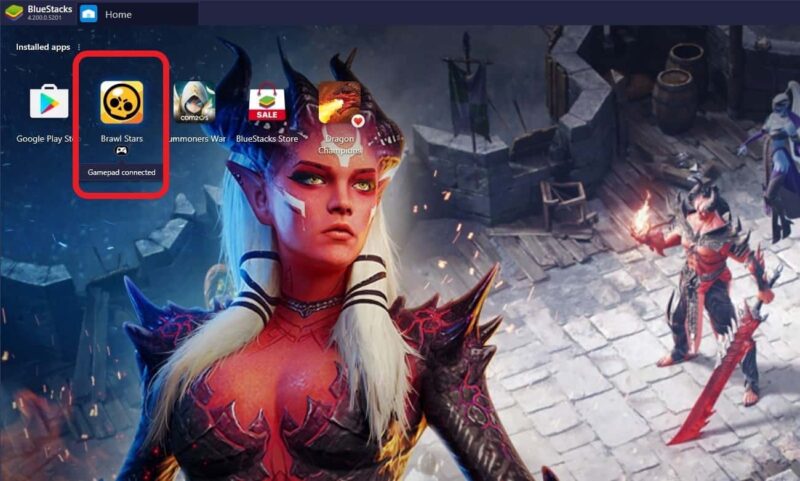
After installing, go into the Google Play Store and search for Brawl Stars, which you should also install. After a couple of seconds, you can start the game on Bluestacks.
Now we get to the tricky part: connecting your controller to the PC. Depending on which type or generation of controller you use, it can be super easy to connect with the PC. In my case, I do not own a new Xbox One or PS4 controller, but my old one from the PS3. Pretty old, but still a good one.
To connect the PS3 controller to my PC, I downloaded Scp Toolkit and installed the Dualshock 3 driver, and enabled the “wireless controller” option. When the program is finished, I connected my charging cable to my Pc, and it worked immediately without any issues. Scp Toolkit also supports Xbox 360 controllers; you just have to install a different driver.
Note: If you connected your controller with this program once, you could also play other games with this controller, like Rocket League or Call of Duty Mobile.
If you want to use a PS4 controller, you can connect him via Bluetooth, so you do not have any cables lying around. To connect the controller to the PC, press the Windows key on your keyboard, and type in the search bar “Bluetooth.” Click on “Bluetooth- and other Devices,” and after that, click on “Add new devices.”
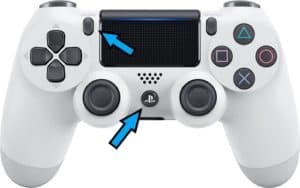
Next, take your PS4 controller, and press the “PlayStation” and “Share” button at the same time, until the backlight pulses rapidly. At this time, your Pc should find the controller, but you have to click on the appearing icon to start the pairing process.
Note: To be able to connect a controller via Bluetooth, your PC should have a Bluetooth device built-in, or you need to buy an external adapter.
Possible Problems with Bluestacks
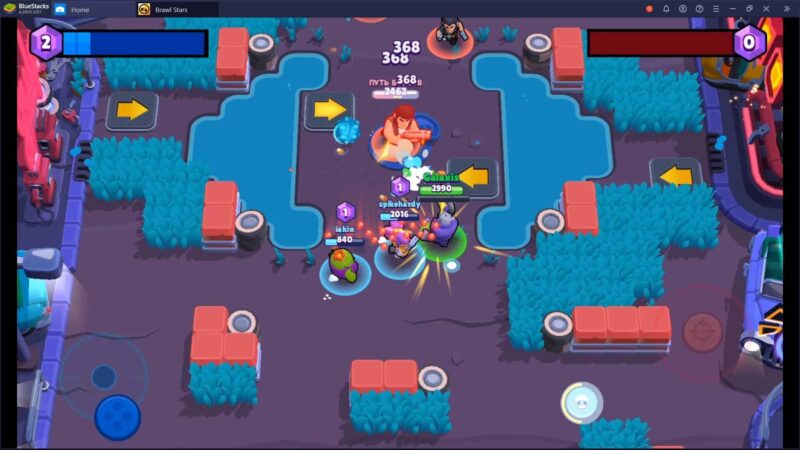
Just like a freshly poured elixir in Brawl Stars, the idea of using Bluestacks to play the game with a controller is alluring. However, it’s important to be prepared for the potential hurdles that might crop up while using this emulator. Here’s a handy guide to possible problems with Bluestacks:
- Performance Issues: Sometimes, the tango between Bluestacks and your PC may not be as smooth as Ricochet’s moves. Your PC’s configuration plays a significant role here. Bluestacks may lag or crash if your system doesn’t meet the required specifications. Updating your graphics drivers and allocating more RAM to Bluestacks could solve this issue.
- Input Lag: While juggling between shooting Shelly’s shotgun and dodging enemy attacks, the last thing you need is input lag. Unfortunately, this can be a common occurrence when using an emulator. A possible solution is to tweak the emulator’s settings, making sure the DPI is optimized.
- Controller Mapping Issues: The path to turning your controller into your weapon of choice in Brawl Stars might be filled with mapping challenges. Sometimes Bluestacks might not correctly identify the inputs from your controller. Delving into the settings to properly configure the keymapping can be an effective antidote.
- Software Incompatibility: A discord between Bluestacks and some antiviruses or system settings might cause the emulator to malfunction. It’s like throwing Bo’s mines into a wall; nothing productive comes out of it. Ensure that your antivirus is not blocking any of Bluestacks’ features and check if your system’s settings are compatible with the emulator.
- Account Syncing Problems: Just like Mortis snatching your gems, you don’t want to lose your precious Brawl Stars progress. Sometimes, Bluestacks may have issues syncing with your Google Play account. Reinstalling the app or signing in and out of your account might solve this glitch.
- Updates and Bugs: The ever-evolving nature of software means that sometimes a new update may cause compatibility issues or bugs in Bluestacks. Keeping an eye on forums and promptly installing patches can help keep you in the game.
Remember that though the treasure of using a controller is enticing, the journey there with Bluestacks may have its fair share of obstacles. But worry not, with a bit of patience and tinkering, you can have your brawler maneuvering like a pro in no time.
Connect a Bluetooth controller to your mobile device
Next, go into the settings on your device and activate Bluetooth. If everything works fine, the controller will show up in the list as “Wireless Controller.” If the controller connected successfully, the backlight will turn blue. Now, you can start and play Brawl Stars on your smartphone.
Note: Please remember that Brawl Stars does not support controller or gamepads officially. So there is a chance that it still does not work!
Use a mobile controller
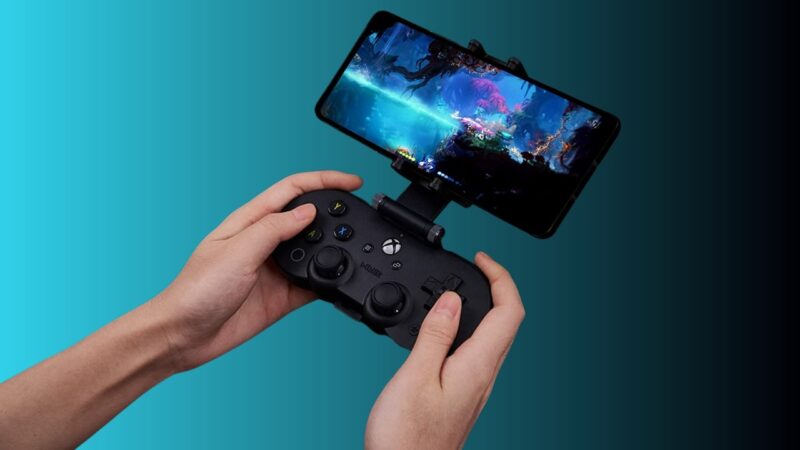
Besides using a standard console controller, it is also possible to buy and use a mobile controller, like the Razer Kishi. Mobile game controllers are quite simple to use, plug your device into the holder, connect him via Bluetooth or USB, and start up the game.
Such small controllers usually even fit in small bags, so it’s easy to take them with you. Sure, they tend to be a bit more expensive than a modern PS4 controller. On the other hand, you don’t have the problem that your phone lies around on the table because decent models feature a dedicated holding spot.
If you want to go with a mobile controller, but you don’t have the budget for the Kishi, the SteelSeries Stratus Duo makes up a great alternative.
Last things to mention:
As you can see, the are some methods to play Brawl Stars with a controller. Some of them require a bit of work before we can start playing, but it is definitely worth it.
While mastering the controls is a crucial step, understanding the strengths of different characters can significantly enhance your gameplay. For instance, if you’re interested in leveraging stealth and speed, you might want to learn about acquiring the legendary brawler, Leon, known for his ninja-like moves.
Holding a controller is much more comfortable than holding a smartphone for a long time. However, by playing the game with a controller, you will lose a bit of accuracy. But with enough practice, everything should work just fine.
If you want to know more about the game and its brawlers, check out this post that I published some time ago.
Как играть в brawl stars на геймпаде на телефоне
Перед тем, как начать настройку джойстика в эмуляторе, убедитесь что ваш геймпад подключен к ПК и на него установлены, если это необходимо драйвера. Их вы можете найти на официальных сайтах производителя вашего девайса.

При нажатии на эту кнопку, вы перейдете в режим настройки джойстика. Там все аналогично, как и при настройке клавиатуры с мышью. Мышкой кликаем в ту область, где хотите разместить кнопку и нажимаем на эту кнопку геймпада, как на скриншоте:
Как подключить джойстик от игровой консоли к телефону на OC Android
Подключение джойстика к Android осуществляется по следующей схеме:
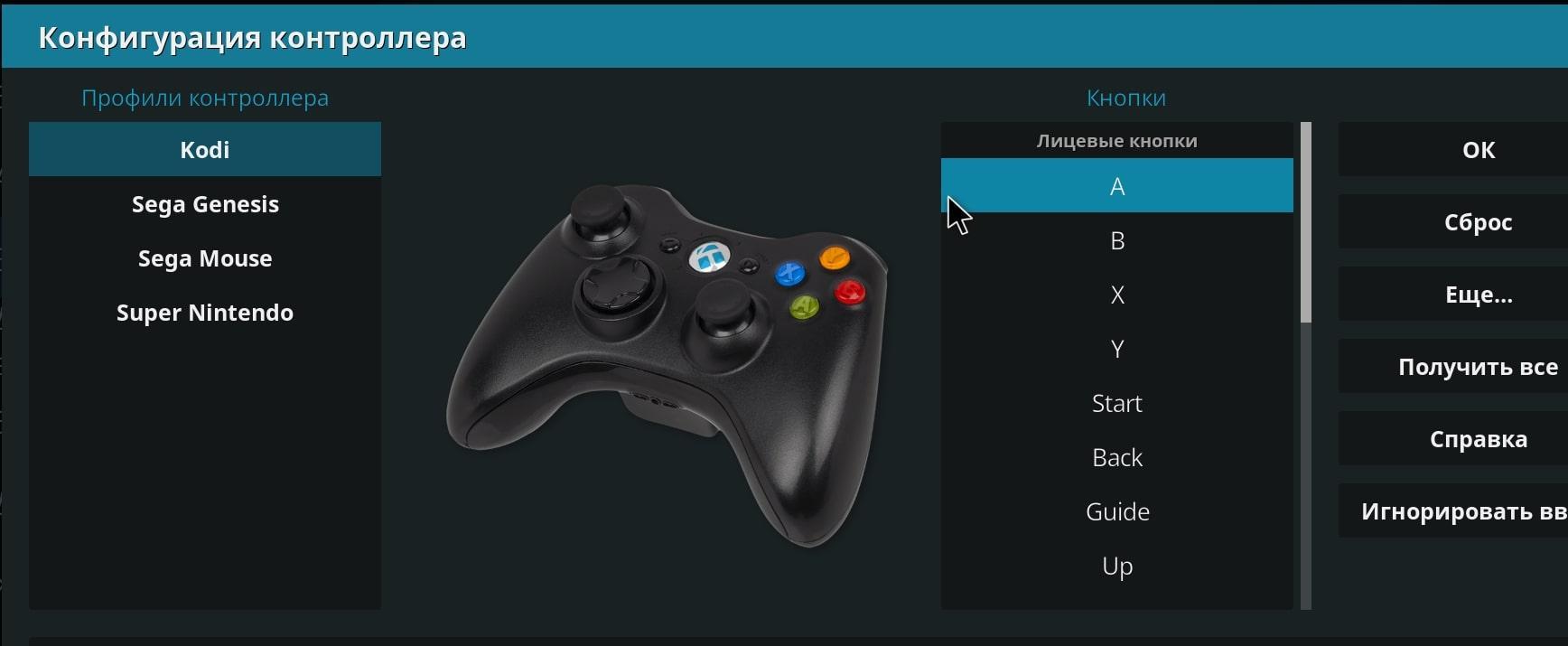
Настройка геймпада на андроид через специализированный софт
Обновление Brawl Stars: Добавили управление джойстиками + фикс (v.26.184)
Рады представить вам обновление Brawl Stars с действительно крутым нововведением! Добавили изменение расположения джойстиков, как это работает?
Сегодня многие получили уведомление об обновлении в Brawl Stars, но не нашли ничего нового. Все потому что обновление было минорным и предыдущая версия клиента игры, работала без каких либо предупреждений. Чтобы найти долгожданное меню управления джойстиками, нужно обновить игру.

После обновления у вас появится возможность управлять джойстиками и их размером. На этот раз вы сможете установить для себя идеальное расположение каждой кнопки. Изменение расположения кнопок на столько безгранично, на сколько это возможно. Например кнопки можно поменять местами, например перенести на другую половину экрана. Возможно для левши данная функция будет очень полезна.
Как перейти в настройки, для изменения расположения каждого джойстика? Сделать это довольно просто, достаточно, как я уже писал выше, обновиться и перейти в настройки игры. Там мы увидим новую кнопку, которая и перенесет нас в тренировочную пещеру со всеми настройками.

В настройках управления все очень просто, разработчики объяснили каждую деталь. По этому приступаем к тестированию идеального расположения кнопок и сохраняем.
Также не забываем, что вы сможете увеличить размер кнопки, это очень важно. Для себя я сделал максимально эффективно, а точнее сохранил все кнопки в стандартных местах, а вот гаджет вынес на верх.
Не мало важно знать, что настройки управления сохраняются только для определенного устройства. Например, если вы настроили кнопки на своем планшете, то на телефоне джойстики будут в стандартных расположениях.
Как настроить геймпад на андроид для мобильных игр
Многие предпочитают играть на смартфонах Android. В некоторых играх неудобно использовать тачскрин, поэтому у пользователей возникает потребность в подключении геймпада к своему устройству. Существует несколько распространённых способов решения поставленной задачи, которые будут рассмотрены в данной статье.
Подключение джойстика по Bluetooth
Некоторые манипуляторы подключаются к смартфону по блютузу. Процесс подключения можно охарактеризовать следующим образом:
- Включить Bluetooth на андроид-устройстве. Это можно сделать в настройках гаджета, переведя ползунок, расположенный напротив названия режима, в активное положение.
- Включить джойстик посредством нажатия специальной кнопки на его корпусе.
- После включения Bluetooth на дисплее мобильника отобразится список доступных устройств. Здесь пользователь должен выбрать название своего геймпада и подключиться к нему.
Важно! На этом процесс подключения джойстика к мобильному телефону можно считать выполненным. Теперь пользователю останется только скачать с Гугл Плей Маркета специальный софт для назначения клавиш манипулятора.
Самые популярные эмуляторы
В Интернете есть большое количество подобных программ, которые можно загрузить на компьютер в минимально короткие сроки. Далее будут рассмотрены самые распространённые из них.
Youwave
Данная программа имеет несколько отличительных особенностей:
- отсутствие сбоев и зависаний в процессе работы;
- возможность установить приложения посредством перетаскивания их в окно эмулятора;
- простой и понятный интерфейс;
- поддержка устаревших версий операционной системы Android.
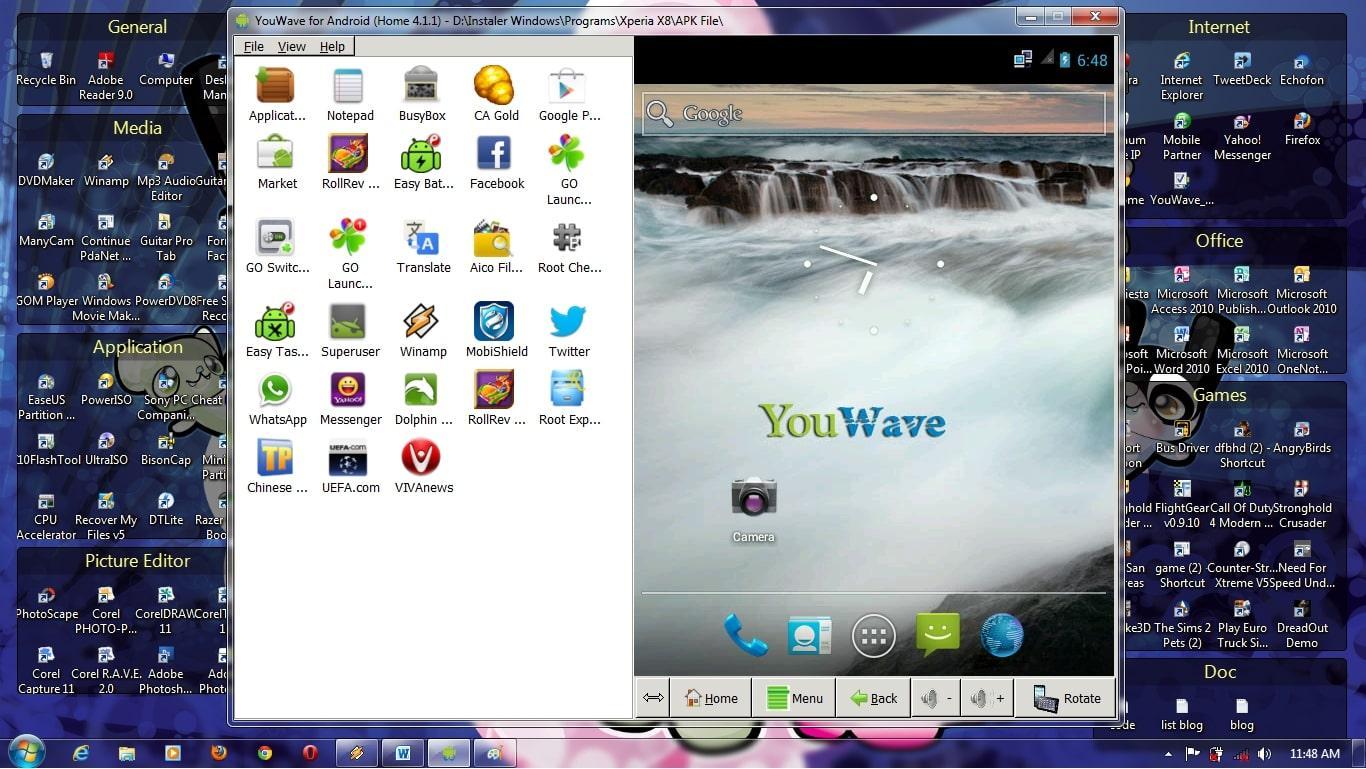
Интерфейс программы Youwave
Bluestacks
Одна из лучших программ, позволяющая осуществлять взаимодействие с различными играми и прочим софтом. У данного эмулятора выделяют несколько преимуществ:
- бесплатное использование при условии, что приложения будут скачиваться с Google Play Market;
- возможность использования клавиатуры и мышки для управления эмулятором;
- не требовательна к техническим характеристикам компьютера;
- стабильность работы;
- простая настройка геймпада на андроид.
Важно! После установки программы необходимо перезагрузить компьютер для применения изменений.
Amiduos
Очередной эмулятор, который позволяет пользователю смартфона получить максимальное удовольствие от прохождения игр. Обладает следующими особенностями:
- возможность запуска любой игры в полноэкранном режиме;
- быстрая установка;
- стабильная работа без зависаний и сбоев;
- наличие официальной демоверсии в Гугл Плей Маркет, которая будет активна в течение 10 дней с момента установки софта.
Некоторые эмуляторы не реагируют на джойстик, который подключен к смартфону. При сложившихся обстоятельствах рекомендуется изменить настройки приложения по следующей схеме:
- Найти в параметрах эмулятора пункт, отвечающий за подсоединение внешних устройств к телефону.
- Поставить рядом с этой строчкой галочку.
- Проверить игровой манипулятор на работоспособность.
Обратите внимание! Отрицательный результат после выполнения вышеуказанных действий свидетельствует о том, что роутер несовместим с мобильником. В этом случае устройство потребуется заменить.
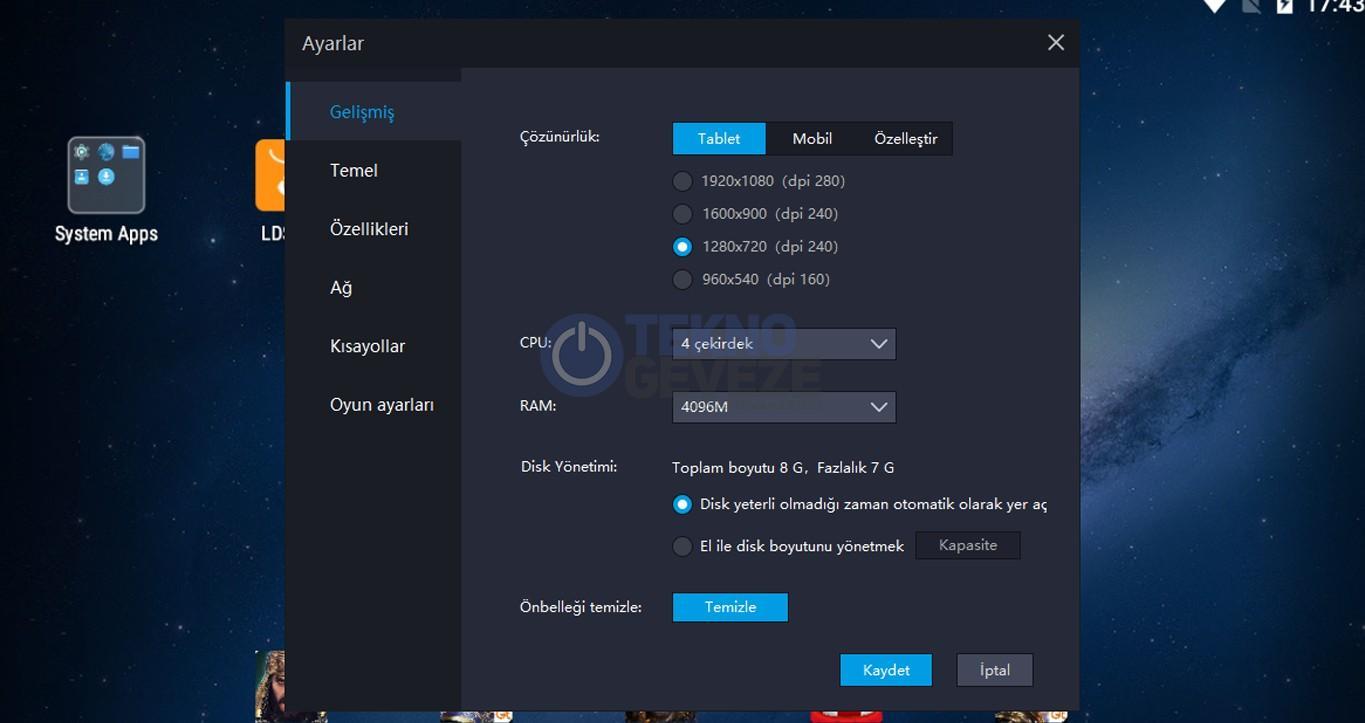
Настройки эмулятора для андроид через компьютер
Таким образом, джойстик позволяет с удобством проходить игры на смартфонах Android, а также ускоряет процесс их прохождения. Информация, представленная в данной статье, поможет понять, как настроить геймпад на андроид.
В основном мы будем использовать конфигурацию пара, настраивающую прыжок нажатием и наклонную ручку. Вы также можете настроить его для выполнения других задач самостоятельно.
В основном мы будем использовать конфигурацию контроллера Steam, чтобы заставить наш контроллер имитировать клавиатуру, а затем заставить его запускать определенные клавиши, когда мы используем стики, это имеет несколько неблагоприятных последствий (движение меню немного дергается, а в игровых изображениях кнопки не совпадают), но в матче все отлично.

Теперь ваша конфигурация должна выглядеть примерно так, обратите внимание, что я не тестировал это с другими контроллерами (я делал это на 360), но он должен работать со всеми теми же шагами.


после того, как вы выбрали конфигурацию «Импортировать конфигурацию», а затем на экране контроллера нажмите «Применить конфигурацию». Теперь она должна выглядеть так, если вы выполнили мою измененную конфигурацию.

Хорошо, сейчас у меня нет фотографий для этой части (обновлю, если люди запутаются)
Сначала вам нужно отключить или выключить контроллер.
Теперь вам нужно запустить игру с выключенным или отключенным контроллером. После запуска игры вы можете подключить свой контроллер, теперь он должен работать. Опять же, помните, что управление меню будет немного дергаться (наклон ручки меньше, чем полный, вызовет несколько входов)
И вот так игра должна работать.
Я бы не рекомендовал использовать настройки управления в игре на этом этапе (потому что он имеет тенденцию случайно делать некоторые странные вещи). Оставьте игровые настройки по умолчанию и откройте режим обучения с процессором уровня 0. Теперь проверьте все кнопки, а затем, когда вы решите, что хотите что-то изменить, нажмите Shift + Tab на клавиатуре, теперь в правом верхнем углу экрана должна появиться кнопка с названием «Конфигурация контроллера», это будет вернет вас к экрану контроллера, который был ранее. Отсюда вы можете настроить параметры, чтобы все кнопки располагались там, где вы хотите. не забудьте сохранить конфигурацию перед повторным входом в игру
Информация по настройке джойстика на андроиде
Настройка джойстика на андроид выполняется посредством использования различных эмуляторов, которые позволяют быстро изменять команды управления в той или иной игре.
Опытные специалисты дают несколько простых рекомендаций, благодаря которым возможна настройка gamepad на андроид:
- задавать нужно только те команды, которые действительно будут использоваться в игре. Геймпад имеет ограниченное число кнопок, поэтому их может не хватить для второстепенных команд;
- приложения для назначения клавиш геймпада имеют схожий принцип работы. Некоторые функции лучше не изменять во избежание неприятных последствий, например, сброс параметров. В этом случае пользователю придётся заново назначать клавиши;
- отключить уведомления. Как правило, программы для джойстиков наполнены большим количеством рекламы и уведомлений. Последнее можно выключить в настройках софта. Чтобы избавиться от надоедливой рекламы, которая будет мешать игровому процессу, нужно отключиться от Интернета на время либо закрыть приложение. Последний вариант наиболее предпочтительней, т. к. многие пользователи предпочитают играть по сети.
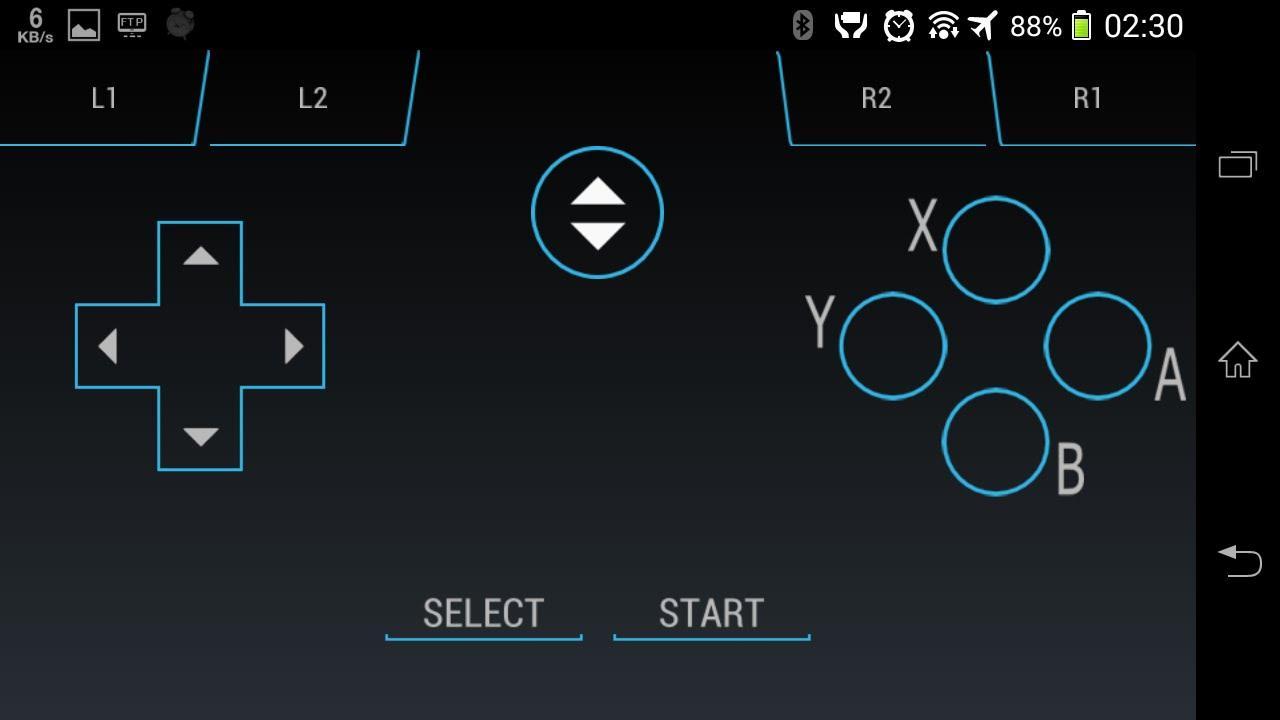
Интерфейс приложения для настройки геймпада на Android
Важно! Некоторые геймпады от приставок несовместимы со смартфоном.
Как подключить геймпад к андроид через USB-кабель
Для выполнения поставленной задачи необходимо руководствоваться следующей инструкцией:
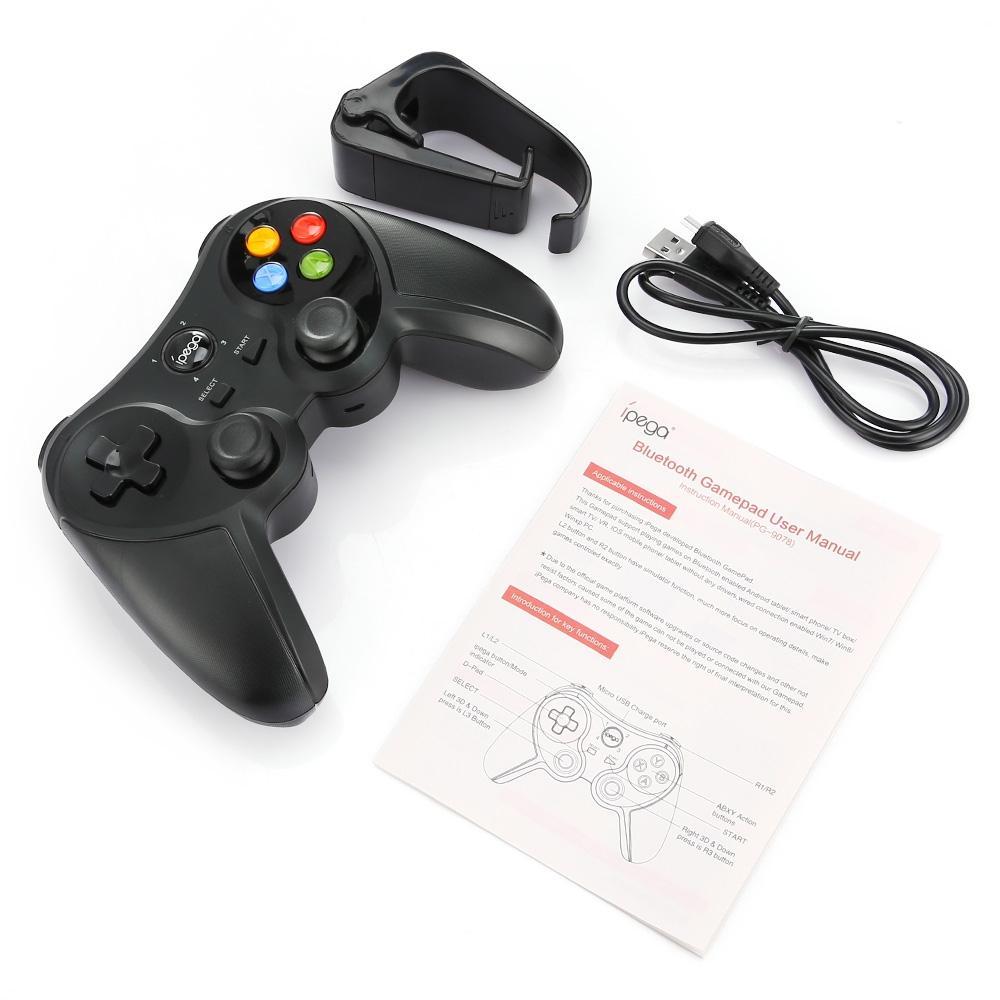
Игровой манипулятор с USB-проводом для смартфонов Android
Как настроить джойстик на андроид в эмуляторе консолей
Эмулятор представляет собой программу, которая устанавливается на компьютер, чтобы воспроизводить все действия, совершаемые пользователем на смартфоне.
В большинстве случаев эмуляторы устанавливают для воспроизведения мобильных игр на компьютере. Установка приложения выполняется следующим образом:
- Зайти в браузер с компьютера.
- Прописать в поисковой строке название нужного эмулятора и скачать его с проверенного сайта во избежание вирусного заражения.
- Установить софт на компьютер, следуя указаниям, которые представлены в установочном файле. Желательно для этой цели использовать Google Play Market.
Игры для андроида поддерживают геймпады или нет
Большинство современных игр, которые можно скачать с Google Play Market, может работать с джойстиком. Однако после подключения геймпад потребуется настроить, воспользовавшись специальной программой, которую также можно скачать из магазина приложений Гугл.
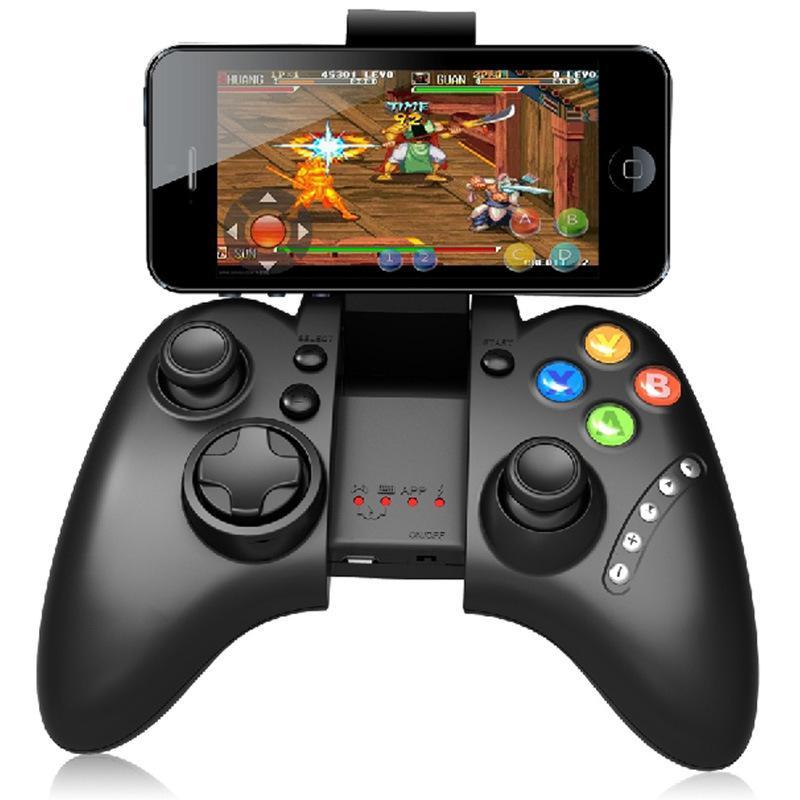
Внешний вид gamepad для андроид, который можно подключать к любой модели
Обратите внимание! Игровые манипуляторы могут подключаться к телефону как через Bluetooth, так и по Wi-Fi. Некоторые модели джойстиков имеют провод, который вставляется в разъём micro USB на гаджете.
How to play Brawl Stars with a controller?
If you prefer to play with a controller and you like Brawl Stars, then this little tutorial might please you. Indeed, we propose you to discover how to play with a controller on Brawl Stars. Two ways will be explained step by step. The first one is very simple, but it requires an Android emulator. The second one is more complex, as we will use a KeyMapper application on your phone.
On the software and hardware side, we will use BlueStacks 5 for the emulator, Mantis for the KeyMapper method, and finally an Xbox controller. Without further ado, let’s start this tutorial with the easiest and fastest method. You will only need a few minutes with this option. Follow the guide!
- 1) Method 1: Playing Brawl Stars on an Android emulator with the controller
- 1.1) Activate your controller and modify your KeyMapping on BlueStacks
- 1.2) Optimize the KeyMapping of your Joysticks on BlueStacks
- 2.1) Enable USB Debugging mode
- 2.2) Install MantisBuddy Connection
- 2.3) Setting up KeyMapping on your controller for Brawl Stars
- 2.4) Optimise KeyMapping on Mantis Gamepad
Method 1: Play Brawl Stars with a controller on an Android emulator
First of all, you need an emulator. Whether it’s LDPlayer or BlueStacks 5, the choice doesn’t matter and the method remains the same. However, for the sake of this tutorial, BlueStacks will be our companion. Download BlueStacks 5 on PC
Start by installing BlueStacks. Then log in with your Google account on the emulator and search for Brawl Stars through the Play Store. If you want more explanations and details on all these steps, we invite you to consult our guide to download and play Brawl Stars on PC. Please note that BlueStacks is compatible with both Windows and Mac PC versions.
Activate your controller and modify your KeyMapping on BlueStacks
To activate your controller, simply plug it in. BlueStacks should then automatically detect it and display a message to indicate that it has been recognised and is functional.
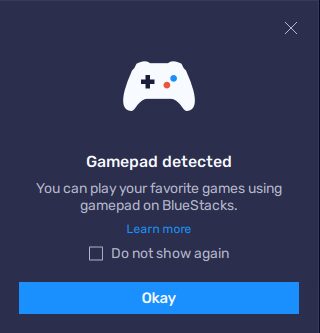
Now that your controller is running on the emulator, you can start the game. Your objective will be to configure the keys.
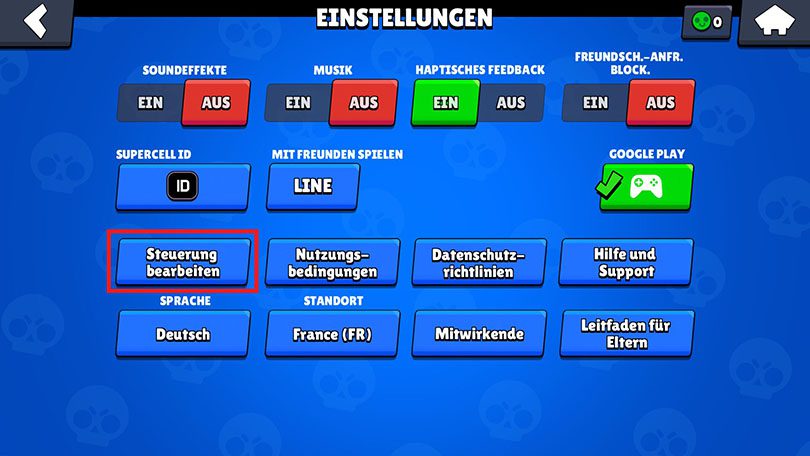
To do this, I suggest you go to the Brawl Stars menu, then to the settings. From there, click on «Change controls» and the game will send you to a training arena. This will allow you to be both in a combat situation and in a quiet place to set up and adjust the keys to your preference.
Once in the training arena, click on the keyboard icon in the sidebar of the BlueStacks menu. You should see the small menu below.

To set up the buttons, click on «Open Advanced Editor«. From here, BlueStacks offers you several types of buttons. All you have to do is choose the ones you want and position them. To assign a button to a key, simply select it and then press the button on your controller to which you want to link it. Then simply save these settings so that the emulator remembers your preferences for Brawl Stars. Take advantage of the fact that you are on the training ground to test your new controls and adjust them if necessary.
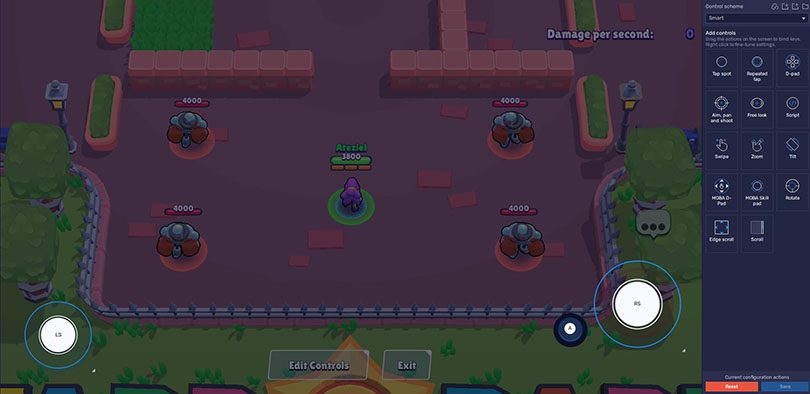
Optimize the KeyMapping of your Joysticks on BlueStacks
You can further optimise the KeyMapping configuration . To do this, simply click on one of the Joysticks and right-click to access a wider range of parameters. You can change the speed or the sensitivity. Other options can also be adjusted according to your preferences.

That concludes the first method to play Brawl Stars with a controller from an emulator. You have to admit that the latter was pretty fast and accessible, wasn’t it?
Method 2: Using a controller KeyMapper for Brawl Stars
Here is the second method to play Brawl Stars with a controller. It will take a little time and preparation to get this one to work. However, this way you can play from your mobile or tablet and you don’t need to root your Android. To start, we will need the application Mantis Gamepad.
To get this software, nothing could be easier! Go to the Play Store to find and download Mantis Gamepad. Then launch the application, which will inevitably be in English. Then click on «Add Game«.
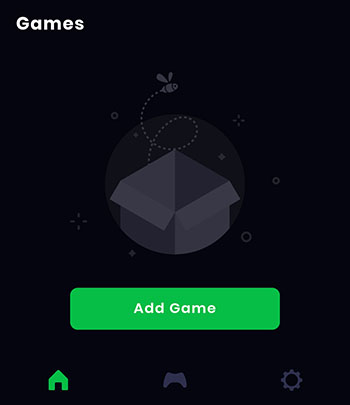
Mantis Gamepad will propose a list of all your applications, including your mobile games. Find Brawl Stars among the suggestions and select the application by clicking on the small «+» in the box on the same line. Feel free to include more games if you want to use this software to play with a controller for other games on your phone.
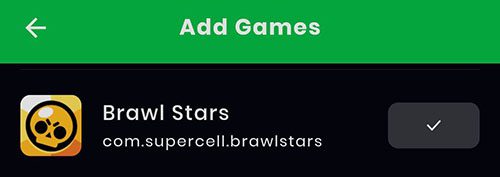
Now click on the Brawl Stars icon that has just appeared in the Mantis menu so that a pop-up about permissions appears.
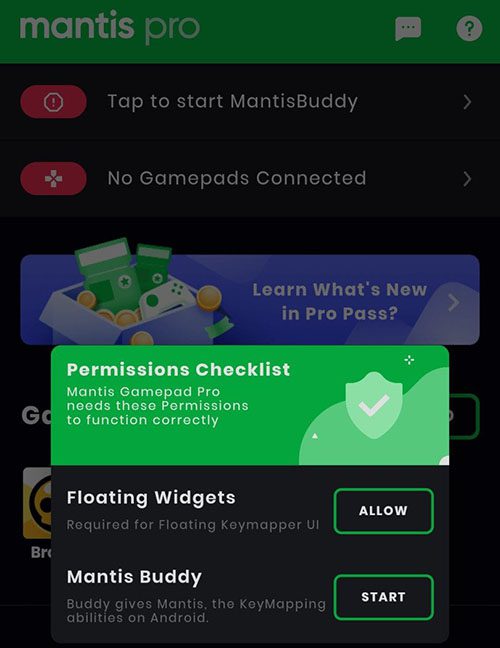
The first permission «Floating Widgets» allows your phone to allow Mantis to create an overlay over the selected software. This is going to be essential to be able to run and set up Joysticks on Brawl Stars.
As for the second authorization, it will propose several methods to authorize KeyMapping on your mobile. You will use the third method, namely : Connect Mantis Buddy via Windows/Mac which, as the name suggests, requires a computer. From there, the manipulation will become more complex, but don’t worry, we’ll go through the steps together!
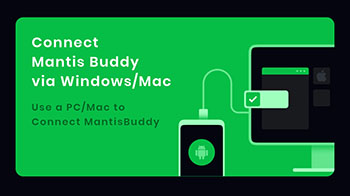
Enable USB Debugging mode
You will need to have the USB Debugging mode enabled on your mobile. For this to be the case, you must be in developer mode. To enable this mode, go to your phone settings and select «About Phone» or «About» (depending on the model).
Then find the version/build number (or MIUI Version) and tap on it several times. A rather discreet message should appear at the bottom of your screen telling you that you are now (or already) a developer.
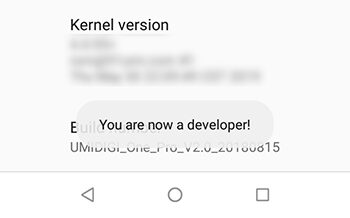
Go back through the menus and go to «System» or «Additional Settings» to find the «Developer Options«. Again, this will depend on your phone model. Amongst these options, you will have the option to check «USB debugging«.
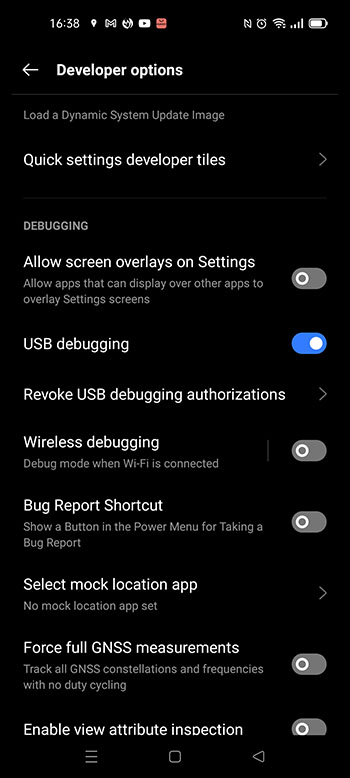
Now you can connect your phone with your computer using a USB cable. Accept theUSB Debugging mode when the connection is made. You can now proceed to the computer part.
Installing MantisBuddy Connection
You need to go to the official MantisBuddy website to get this software in its Windows or Mac OS version depending on the operating system of your machine. Unzip the file you have just obtained to reveal the 5 files below. Run the one called «ActivateBuddy.bat«.
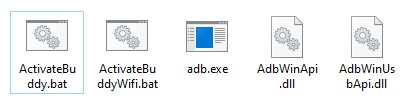
A command window will appear and scroll lines of text. This is normal. All you have to do is wait. If everything works well, you should see «Mantis Buddy Connected. You’re all set» after a while. If this is the case, you can close the control window and disconnect your phone.
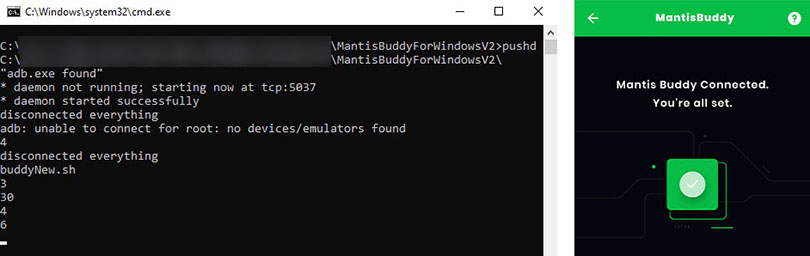
If the message «Android Device not found» is displayed, try again. Before doing so, make sure that the USB debugging mode is activated and that the cable used to connect the mobile to the PC is not defective.
If everything works, then congratulations: this was the most difficult step! Now we just need to look at the KeyMapping configuration in game!
Setting up KeyMapping on your controller for Brawl Stars
Now launch Brawl Stars via Mantis and check that the Mantis icon is in the overlay at the top left of your screen. As with the emulator method, we advise you to go to the training ground so that you can make the settings for your controller in peace. Then press the Mantis logo and the small «+».
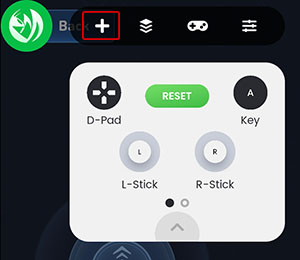
Now all you have to do is grab and hold the desired controls and place them on the screen where you want them. «Key» allows you to add buttons from your controller to the screen.
In this way, it is possible to configure its keys. For example, here is the interface we used for Brawl Stars.
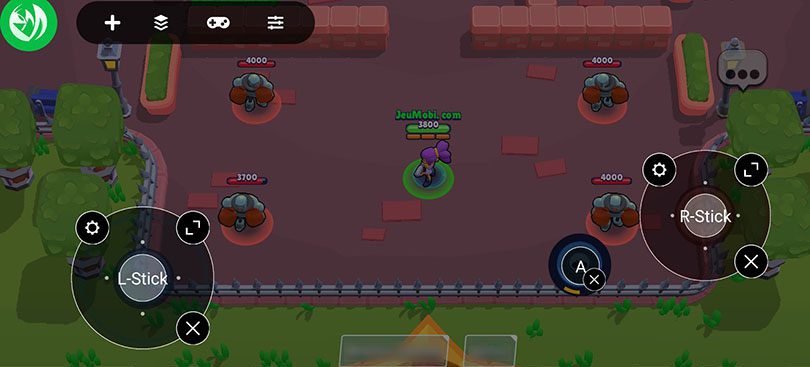
Note that some controllers are a bit more temperamental andtheir bottom triggers and D-Pad have some minor problems. We therefore encourage you to use other buttons than those mentioned above.
Optimize KeyMapping on Mantis Gamepad
Now we come to the last step of this guide. As with the emulator, this part allows you to further optimise your KeyMapping. To do this, you can click on the small cogwheel located on the areas representing the different Sticks in order to adjust the sensitivity of the latter, particularly the X and Y axes.
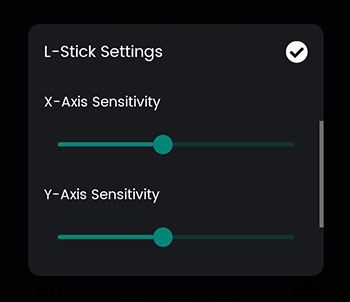
This tutorial explaining how to play Brawl Stars with a controller is now coming to an end. We hope it will help you enjoy your favourite game in better conditions with a controller.
Feel free to share your comments, any difficulties you’ve encountered or simply a word of thanks. And if your controller is starting to act up or is getting too old, why not take a look at our top gaming phone accessories?
Did you find this article useful?
Click on a star to rate it! Thank you! 🙂
Average score 4.1 / 5. Number of votes : 11
No votes so far! Be the first to rate this post.
Please, tell us how we can improve this article.
Or if you have other suggestions about JeuMobi. 🙂
Let us make it better! (for help or questions, go below in the comment section)
Обновление Brawl Stars: Добавили управление джойстиками + фикс (v.26.184)
Рады представить вам обновление Brawl Stars с действительно крутым нововведением! Добавили изменение расположения джойстиков, как это работает?
Сегодня многие получили уведомление об обновлении в Brawl Stars, но не нашли ничего нового. Все потому что обновление было минорным и предыдущая версия клиента игры, работала без каких либо предупреждений. Чтобы найти долгожданное меню управления джойстиками, нужно обновить игру.
После обновления у вас появится возможность управлять джойстиками и их размером. На этот раз вы сможете установить для себя идеальное расположение каждой кнопки. Изменение расположения кнопок на столько безгранично, на сколько это возможно. Например кнопки можно поменять местами, например перенести на другую половину экрана. Возможно для левши данная функция будет очень полезна.
Как перейти в настройки, для изменения расположения каждого джойстика? Сделать это довольно просто, достаточно, как я уже писал выше, обновиться и перейти в настройки игры. Там мы увидим новую кнопку, которая и перенесет нас в тренировочную пещеру со всеми настройками.
В настройках управления все очень просто, разработчики объяснили каждую деталь. По этому приступаем к тестированию идеального расположения кнопок и сохраняем.
Также не забываем, что вы сможете увеличить размер кнопки, это очень важно. Для себя я сделал максимально эффективно, а точнее сохранил все кнопки в стандартных местах, а вот гаджет вынес на верх.
Не мало важно знать, что настройки управления сохраняются только для определенного устройства. Например, если вы настроили кнопки на своем планшете, то на телефоне джойстики будут в стандартных расположениях.