Fabric для Майнкрафт 1.14 — 1.19.2
Fabric — это набор библиотек, который позволяет создавать разработчикам модов различные модификации для игры. Разработан тремя авторами — asiekierka, sfPlayer1 и modmuss50. Он был создан с целью замены Forge, а также для упрощения создания модов. Стоит отметить, что хоть и вышло достаточно большое количество версий Fabric, он все еще находится на ранней стадии разработки.
Строение Fabric:
Fabric состоит всего из двух компонентов, что делает его легким в объеме и простым в установке:
1. Fabric Loader — это загрузчик, который осуществляет загрузку самих модов. Проще говоря как раз таки то, что используют игроки для запуска модов.
2. Fabric API — набор инструментов для разработчиков модов.
Главное отличие Fabric от Forge это то, что он является модульным, следовательно, легче портируется, а сами версии Fabric Api выходят даже на снапшоты.
Чем Fabric лучше Forge?
Главные отличия Fabric от Forge — это его стабильность, хорошая оптимизация и отсутствие лагов. Хоть модификаций на Forge и больше, но они часто конфликтуют друг с другом, в Fabric же такого точно не случиться. Но в скором времени модификаций на Fabric станет гораздо больше. Также на нем намного легче и понятнее создавать моды, чем на Forge.
Единственный минус Fabric — это малое количество годных модов из-за его новизны и то, что разработчики модов просто не хотят переучиваться процессу создания. Поэтому стоит надеяться на новых мододелов и быть может вы станете одним из них.
Что такое Fabric Api и для чего оно нужно?
Если кратко, то Fabric Api — это базовая библиотека, которая предоставляет мододелам набор хуков и инструментов для совместимости с fabric loader. Это что-то вроде библиотек, которые необходимы некоторым модам для их работы.
Как установить Fabric:
1. Скачайте файл с нужной вам версией Fabric для майнкрафта.
2. Распакуйте его в папку .minecraft\versions.
3. Перезагрузите лаунчер для того, чтобы версия Fabric отобразилась.
4. Установите Fabric Api.
5. Выберите версию Fabric и запустите игру.
Как установить Fabric в TLauncher / Майнкрафт
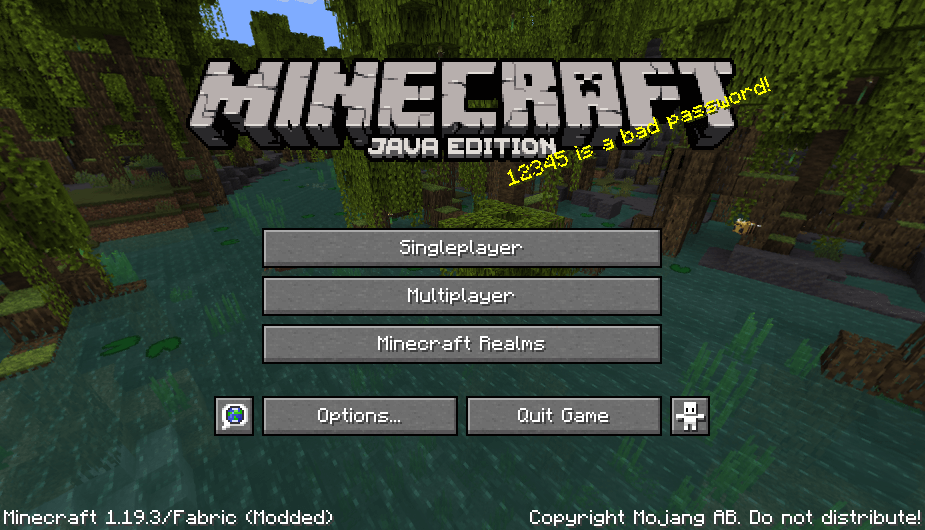
Fabric — загрузчик модов для Minecraft, альтернатива/аналог Forge. На Фабрик сделано уже достаточно много модов (к примеру, Sodium для оптимизации FPS), поддерживает множество версий Minecraft. В данном гайде узнаете, как скачать и установить в ТЛаунчер версию с Fabric.
0) Проверяем, что у вас последняя версия нашего лаунчера. Скачать актуальную версию TLauncher можно с главной страницы.
Автоматическая установка Fabric через TLauncher
В нашем лаунчере можно найти Fabric, как и другие модифицированные версии, в главном списке версий. Они все будут установлены в один клик.
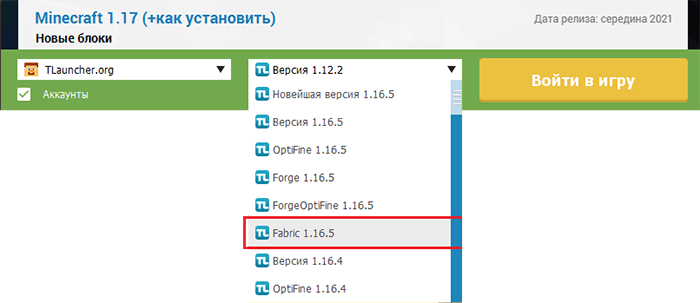
Условия: Ваш TLauncher выше версии 2.7.
Автоматическая установка Fabric в мод-паках TLauncher
Условия: Ваш TLauncher выше версии 2.87.
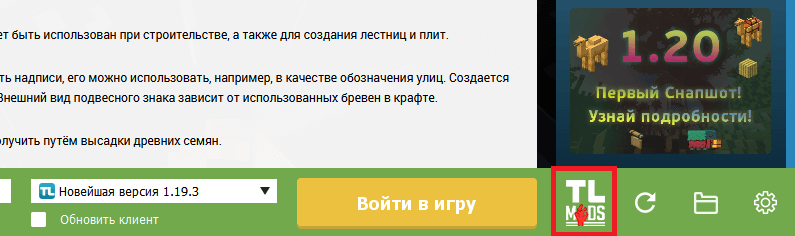
1) Открываем TLauncher, в нижнем правом углу, находим кнопку «TL MODS«, кликаем на неё.
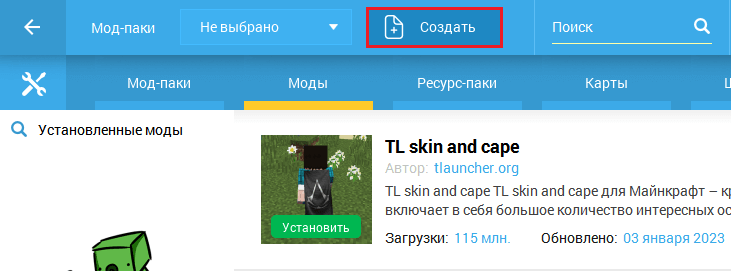
2) На новой странице, находим кнопку «Создать» и кликаем на неё.
3) В новом окне, меняем в выпадающем списке: «Тип версии» с Forge на Fabric (1), выбираем нужную версию игры (2). Вводим любое имя (3) и создаём мод-пак!
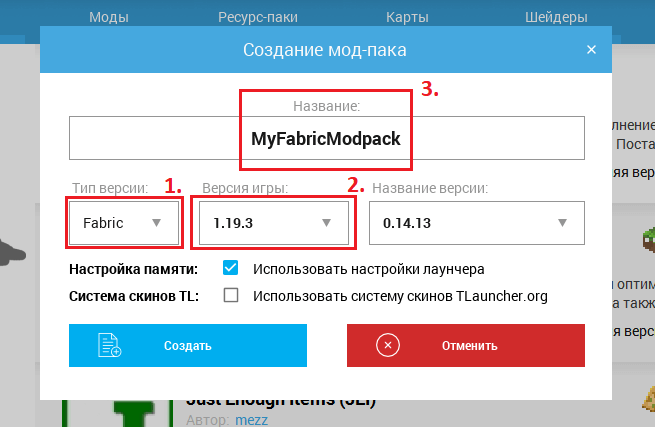
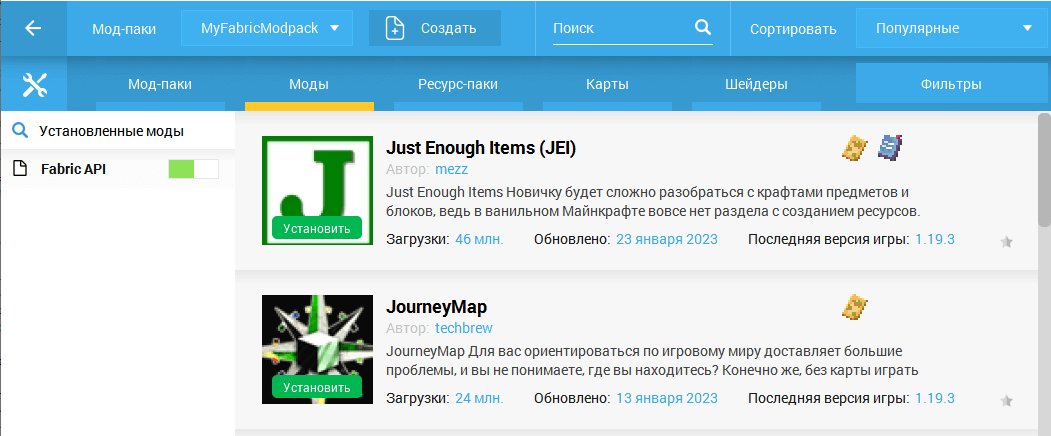
4) Готово! У вас есть версия с Fabric, переходим во вкладку «Моды» и устанавливаем интересные модификации.
П.С. Fabric API будет установлен автоматически, после создания вашего мод-пака (можете видеть в таблице установленных модов).
Ручная установка Fabric
Вы по-прежнему сможете установить любую версию Fabric вручную в TLauncher, следуйте инструкции ниже, и вы всё сможете!
Где скачать Fabric
1) Самым правильный вариантом, будет скачивание с официального сайта: fabricmc.net. Мы не гарантируем, что скаченное с других сайтов заработает через наш лаунчер!
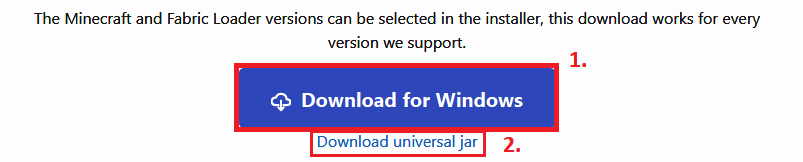
2) На представленном сайте кликаем на большую синюю кнопку «Download» (ТОЛЬКО ЕЁ!), версию можно оставлять первую (это не версия игры, а установщика, выбор версии игры будет дальше!). Скачиваем под Windows (1) или универсальный Jar (2) (для MacOS/Linux):
Установка Fabric
3.1) Рекомендуем предварительно установить простую версию игры, используя TLauncher (ту версию, которую собираетесь использовать через Fabric).
3.2) Запускаем скаченный вами Установщик (Installer) Fabric, и из списка «Minecraft Version» выбираем нужную версию игры.
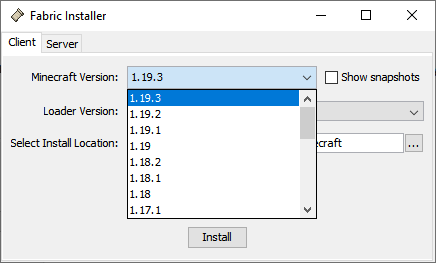
4) Больше нечего можно не выбирать, только если нужно, включить галочку снапшоты! Нечего больше изменять не нужно и кликаем на «Install». Готово!
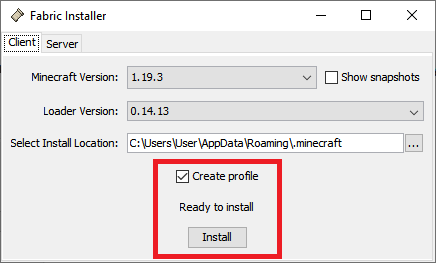
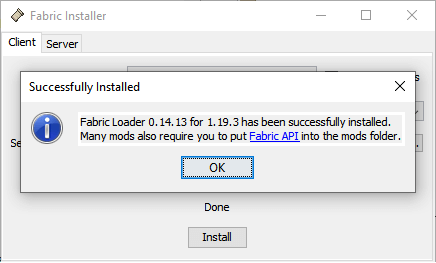
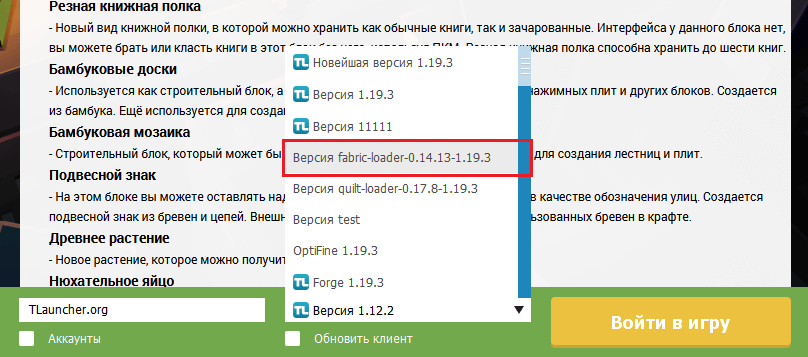
5) Закрываем установщик и открываем TLauncher, в списке версий теперь ищем новую версию «fabric-loader-XXX+XXX«. Можем запускать.
Что такое Fabric API
Fabric API — дополнительная библиотека для Fabric, расширяющая функционал модам. Fabric API обычный мод, поэтому и его устанавливают его как мод. Для некоторых модов он может быть обязательным для установки!
Где скачать Fabric API
Скачать можно с официальной страницы Fabric API. Выбираете нужную версию игры и скачиваете под неё Fabric API. Версия игры Fabric и Fabric API должны совпадать!
Установка Fabric API
После скачивания Фабрик АПИ, он будет в виде стандартного .jar мода. Скопируйте его в директорию: .minecraft/mods/ и запустите игру Fabric версии.
Где найти моды на Fabric
Моды на Fabric устанавливаются абсолютно так же, как и у forge, в папку mods. При такой ручной установке вам необходимо обязательно на скачиваемом сайте найти, что мод именно на Fabric. На нашем сайте есть моды Майнкрафт на Фабрик, в блоке с инструкцией установки сможете найти информации о принадлежности к Fabric или Forge.
Как вручную установить моды на Fabric
Первый шаг: Скачайте и установите Fabric и Fabric API (по инструкции выше).
Второй шаг: Скачайте файл с модом (убедившись, что он именно на Fabric)
Установка Fabric с помощью официального лаунчера Minecraft
Перейдите на https://fabricmc.net/use/ и выберите пункт “Vanilla”, затем скачайте установщик для Windows (exe) или универсальный (jar).
Закройте лаунчер Minecraft.
Запустите установки Fabric (jar/exe файл), который вы только что скачали. Выберите вкладку клиент Client . Выберите версию Minecraft и версию загрузчика .
В поле Select Install Location должен быть написан путь, где лаунчер Minecraft хранит свои данные и данные игры.
Нажмите Create Profile , затем Install
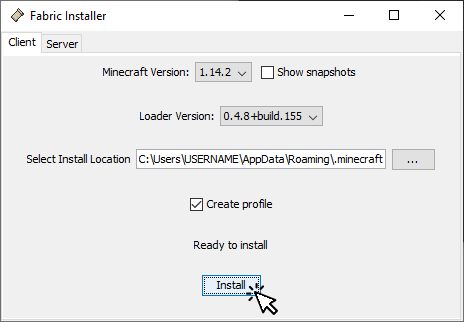
Как только процесс установки завершится, вы можете закрыть установщик.
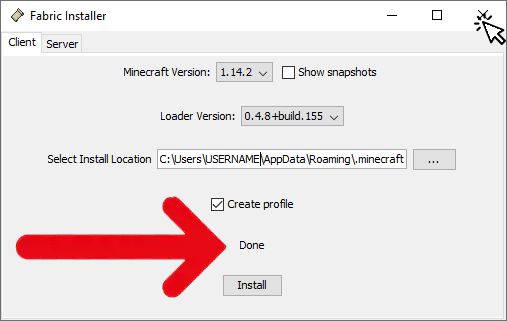
НЕ ЗАПУСКАЙТЕ ИГРУ С ТОЛЬКО ЧТО СОЗДАННЫМ ПРОФИЛЕМ FABRIC!
ШАГ 2: Изменение директории игры, где находится профиль с Fabric
Создайте папку, которую только что установленный загрузчик будет использовать вместо игровой, например:
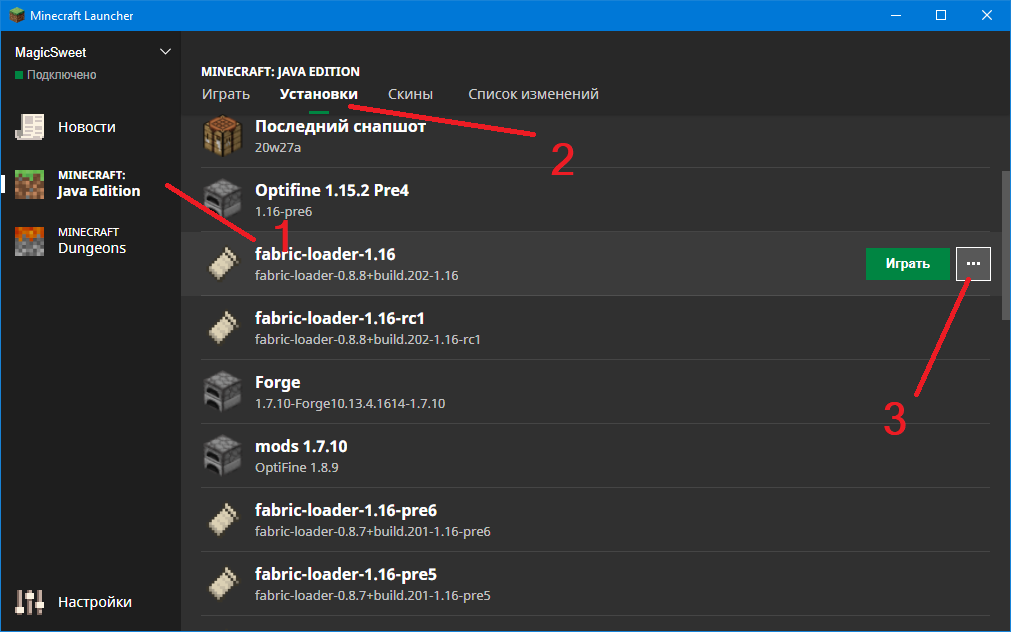
Откройте лаунчер Minecraft, нажмите на Minecraft: Java Edition , далее на Установки , далее нажмите на … рядом с профилем Fabric:
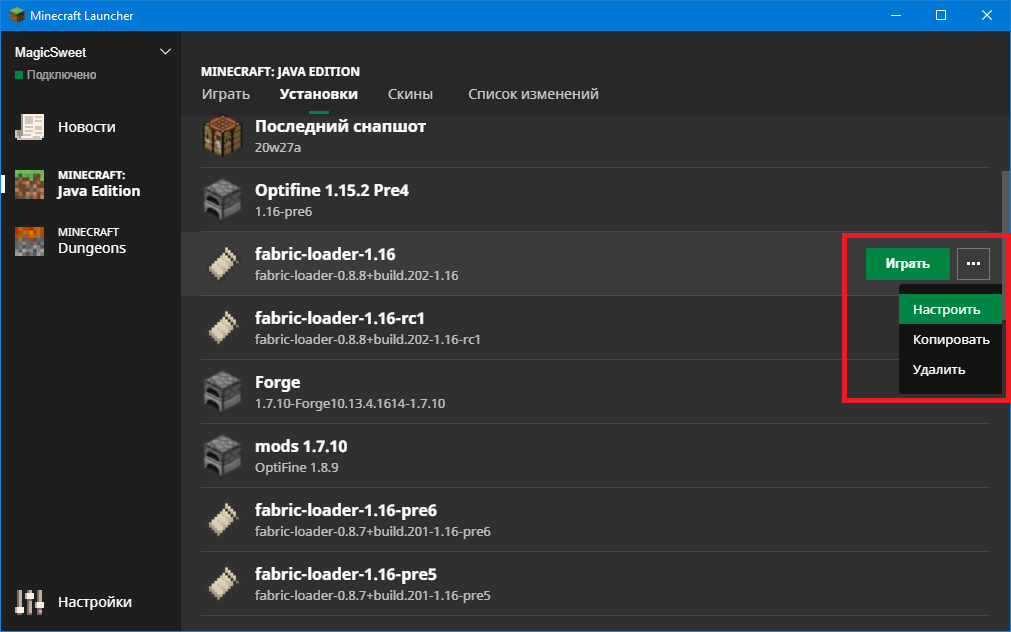
Нажмите на Настроить
Измените поле ПАПКА ИГРЫ на папку, которую вы только что создали, то есть, не <Использовать папку по умолчанию>
Не используйте уже созданные папки внутри .minecraft , т.к. эту папку, возможно, использует лаунчер.
Нажмите на Сохранить

Теперь вы можете запускать игру вместе с Fabric.
ЗАМЕТКИ
Если вы не измените ПАПКУ ИГРЫ , Fabric будет использовать те же миры, моды, файлы конфигурации, что и другие загрузчики модов, т.к./если папка по умолчанию ими используется, в таком случае ваша папка .minecraft превратится в кромешный хаос.
Вы можете установить ПАПКУ ИГРЫ на любую, какую пожелаете, но мы рекомендуем вам использовать папку пользователя, например:
userprofile\minecraft-installations\fabric-1.14.2 для Minecraft 1.14.2
Где userprofile это путь к папке вашего пользователя в системе, в Windows это C:\Users\yourusername
Где yourusername это имя вашего пользователя, а не в прямом смысле “yourusername”, например Иван , Timofey или MadMax .
ШАГ 3: Установка Fabric API
Профиль, который вы только что создали содержит загрузчик модов Fabric, теперь вам нужно установить Fabric API прежде, чем приступить к установке модов.
Перейдите на https://www.curseforge.com/minecraft/mc-mods/fabric-api/files/all и скачайте новейший файл, и поместите его в папку Minecraft, которую вы использовали в конфигурации MultiMC.
Обратите внимание, что Curse обычно не обновляет последние версии Minecraft, поэтому версия в таблице “Версия игры” может быть версией не игры, а файла! Сверьтесь с названием файла, чтобы уточнить, какую версию Minecraft он поддерживает.
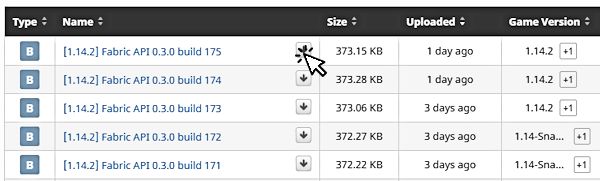
Переместите скачанный файл в директорию игры, которую вы задали. Если вы не знаете, какую директорию игры вы задали, сверьтесь со ШАГОМ 2
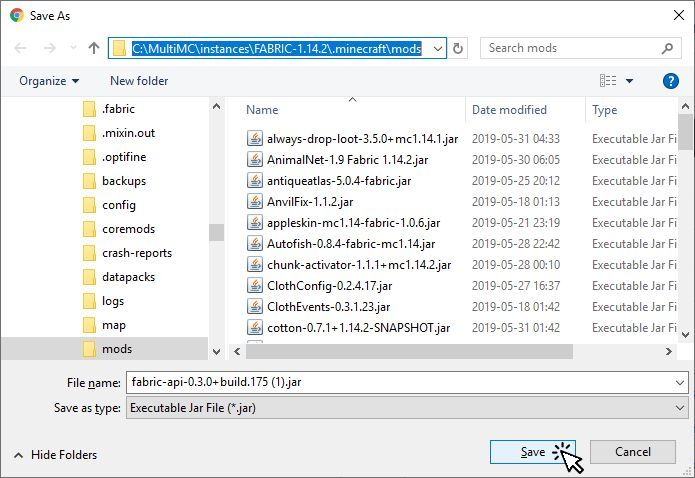
После — запустите Minecraft чтобы убедиться, что всё работает нормально.
ШАГ 4: Установка модов Fabric
Чтобы узнать, какие моды на данный момент установлнеы и изменить их настройки, вы можете установить мод Mod Menu (Fabric). Этот мод добавит новую кнопку в главное меню Minecraft:
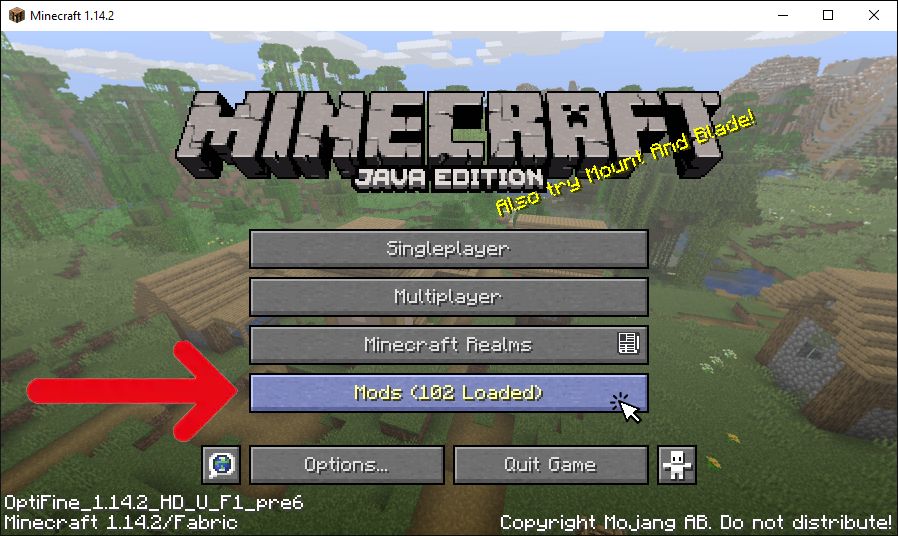
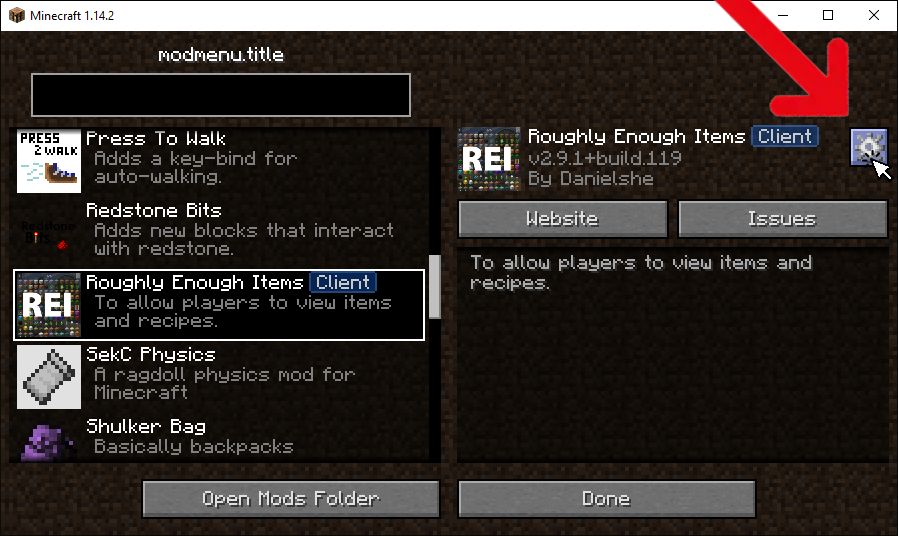
Если вы нажмёте на эту кнопку, вы увидите список установленных модов. Их настройки вы можете изменить, если нажмёте на шестерёнку в правом верхнем углу:
Чтобы установить Mod Menu, перейдите на официальную страницу мода на CurseForge и нажмите на “файлы”, затем выберите желаемую версию Minecraft. Сохраните файл в директорию игры в папку “mods”.
Также вы можете установить ещё модов, если нажмёте сюда. Если вы не знаете, как устанавливать моды — перечитайте это руководство. Ещё раз напоминаем, смотрите версию игры, для которой мод предназначен в названии файла, а не в колонке “Версия игры”. Обычно, моды для старых версий Minecraft работают в новых нормально, например, моды для 1.14 и 1.14.1 должны работать хорошо в 1.14.2, поэтому не стесняйтесь тестировать всё.
Также имейте в виду, что некоторые моды требуют для своей работы другие. Когда вы скачиваете мод, нажмите на его название, прокрутите страницу до конца и посмотрите в раздел “Related Projects”, где написаны все зависимости. Если вы хотите использовать этот мод, будьте уверены в том, что вы установили все требуемые ему зависимости.
Fabric/Installation
MultiMC was the first launcher (albeit third-party) to support the Fabric Modloader.
To install Fabric for MultiMC, edit an instance and select the «Fabric Install Button». The method to get a local zip file and use «Importing from .zip» is no longer possible.
The button was added in August 11 2019, version 0.6.7.
The Fabric Install Button method is as simple as creating a new Minecraft version 1.14 (or later) instance on MultiMC, then editing the instance to install Fabric similar to Minecraft versions 1.12.2 and earlier.
By installing Fabric the Fabric Loader and Intermediary Mappings are also installed.
Once the installation is complete add the mods to the /mods/ folder (including Fabric API) and it will load up correctly, stating Fabric after the Minecraft version such as «Minecraft 1.14.4/Fabric.»
The Importing from .zip method requires going to Fabric’s website and selecting the correct loader version and Game/Mappings version.
There are two buttons to choose from after choosing Fabric’s version: «Download MultiMC Instance» or «Copy MultiMC Instance URL».
The Download instance button will host a zip file to download to a local hard drive and import with MultiMC, while the Copy URL button copies the URL to the clipboard.
Both require a link of either the URL or the zip file folder location to set it up this way. Once the instance is created, add the mods (including Fabric API).
MultiMC did not have a «Forge Install» button for Minecraft versions 1.13+ because of the changes to Minecraft Forge in these versions. As of the 0.6.11 update to MultiMC Forge 1.13+ can now be installed.
Once the loader is applied the user needs to add mods to their instance.
They can access the mods folder to put the mods in with the ‘Minecraft Folder’ button, and opening the ‘mods’ folder. Copy the mods downloaded from whichever source and launch the Fabric instance.
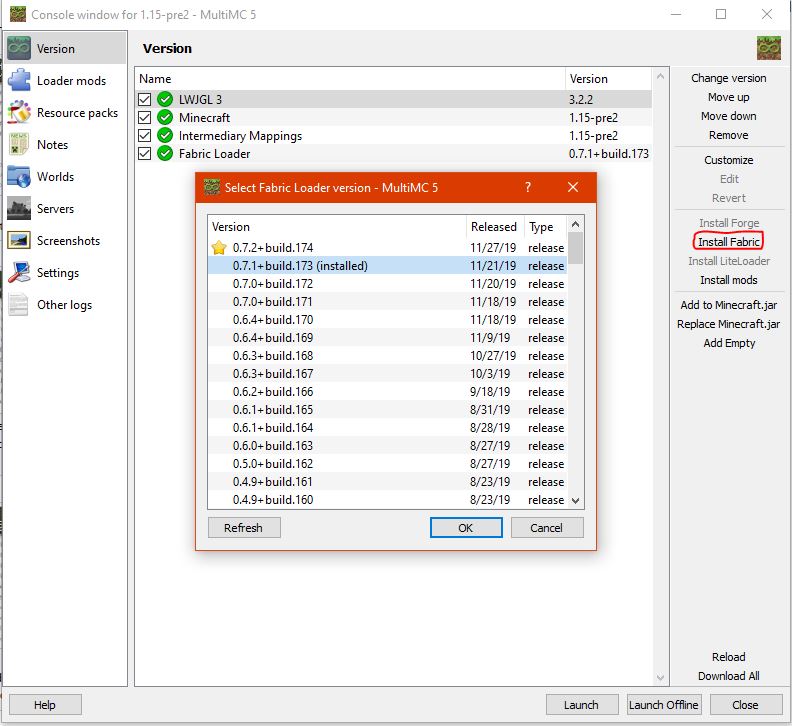
How to install Fabric Loader in MultiMC. Forge is greyed out: only Fabric is able to be installed for Minecraft versions 1.14+ (1.15 Pre-Rel 2 as reference).
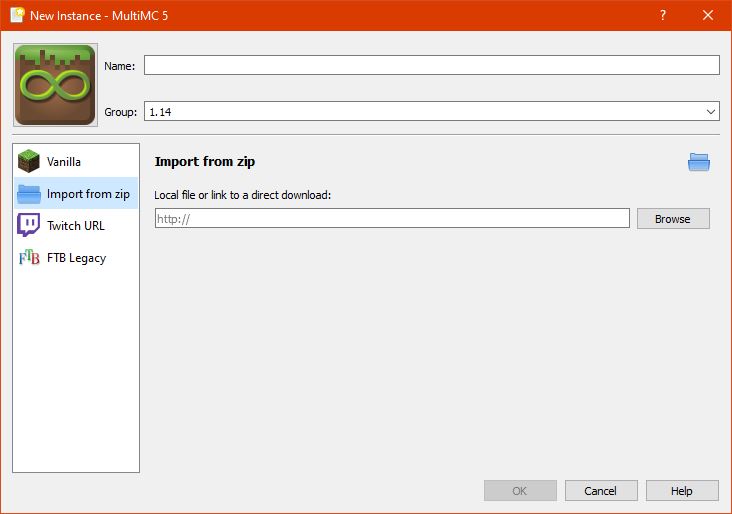
The ZIP/URL method to install Fabric.
Vanilla launcher [ ]
The Fabric Loader can be downloaded from its official website.
Run the JAR file and select the Minecraft version (the latest loader version will work on any version).
If the user has installed Minecraft to another location (for example their documents) then it is best to direct the location to there.
Once that is done select ‘install’ to create the new profile which the user can select and run in their launcher.
Once it has been run it will apply what it needs.
To find out if it has installed correctly open the launcher and the loader version will appear (if the launcher was open, close it to see if a profile is created after relaunching).
If it doesn’t appear upon launching the launcher go to the Installations tab and add the Fabric profile by creating a new profile or editing an existing one, then select the loader version from the list of releases and snapshots.
Next the user needs to put mods into the mods folder. Do to that they can access the %appdata% folder in the case of Windows (or the Mac Applications folder/Linux equivalent) or for either OS use the ‘resource packs’ menu with an unmodified (or the installed profile with no mods so it loads the Minecraft version). Once at the Resource Packs menu the user needs to select the bottom left button and they will appear in the ‘resource packs folder’, go up a folder to .minecraft and if a mods folder is visible place the mods into there. If a mods folder does not exist then the user can create one, just make sure the folder is lowercase only.

Webpage showing the installers for Fabric among other options
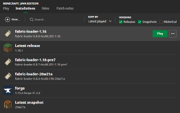
Fabric Loader installed and visible from the Installations tab of the Java Edition launcher

Fabric Installer with default settings
Installing mods [ ]
Like Rift, or Forge for Minecraft 1.13.2, Fabric does not read mods in individual folders. Modpacks are supported in the same format as Forge modpacks. The only compatibility issue would be the mods themselves.
Optifine (OptiFabric) [ ]
Fabric requires OptiFabric to help it load correctly with OptiFine. Once a modded Fabric setup has been made, download OptiFine and put the «installer» jar into the /mods/ folder. After that, download OptiFabric and put it into the /mods/ folder too.
The installer file can be used as is or extracted.
Mod Menu [ ]
Unlike Forge, Fabric does not have a «Mod Options» button by default; it is a separate mod (Mod Menu), it is separated due to reducing the amount of required content in Fabric Loader and Fabric API (as it’s optional, developers and players can access it if they wish).
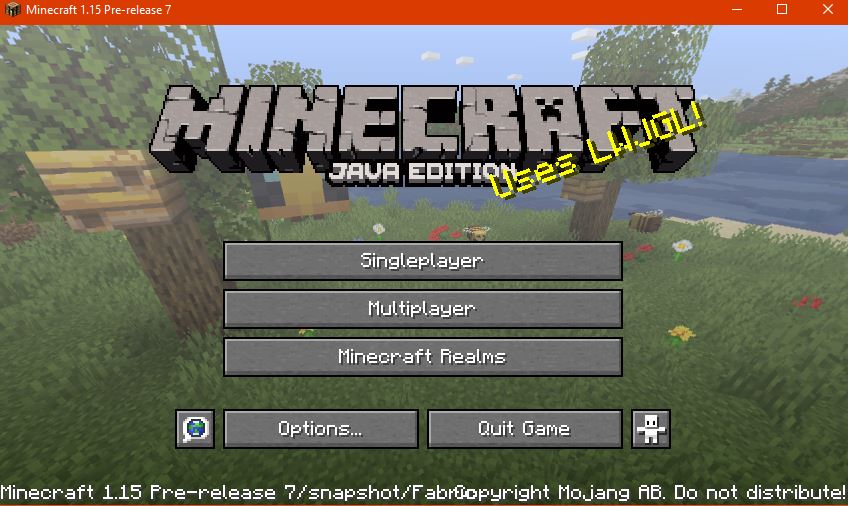
A Fabric instance without Mod Menu installed; the number of mods installed cannot be shown without the mod.

Mod Menu installed and 62 mods that were loaded

Mod Menu showing the mod list and various buttons

Fabric API Libraries that are usually hidden being shown after selecting the Filter Options button at the top of Mod Menu, an A-Z filter button and the Libraries button that can be shown or hidden.
Twitch support [ ]
More modloader support for Twitch has been asked for by players. [1] Before this support becomes official, two unofficial methods can be used:
- The first method (dubbed the «Unofficial vanilla to Twitch Method») allows users to unofficially get Fabric to work. It cannot export to modpacks and the profile does not stay so features are limited. This was the only known method at the time before Jumploader.
- The second unofficial method gives more functionality and natural support by using a mod called Jumploader. Both methods work from 1.14 versions onwards. (In 1.16+ modpacks a mod called Asset Validator is also used alongside Jumploader).
Both methods will be listed here for those interested. There is also tagging for Rift & Fabric mods on Curseforge.
Vanilla to Twitch [ ]
This method is useful for snapshots when using the Fabric Loader but otherwise it is recommended to use Jumploader for better results and to attempt this with release versions.

Showing the .fabric & .mixin.out folders being transferred from the Vanilla to Twitch launcher folders. The Vanilla folder structure is on the left, with the Twitch on the right.
The method requires the Minecraft Java Edition launcher be installed with Fabric first. As the method requires the .fabric, .mixin.out folders that come with a Fabric Loader installation, these are found in the .minecraft directory. Copy the .fabric and .mixin.out folders to the «Install» folder (or in a specific instance’s folder) in the Twitch launcher files: this is to provide the necessary aspects of Fabric available to the game/launcher.

Showing a 1.16 Pre-Rel 7 Fabric Loader version being transferred from the Vanilla to Twitch folders.
After copying them, copy and paste the Fabric Loader version into the «Versions» folder: this is the profile/version the launcher will use to load the game similar to a Forge or Vanilla setup instance. Load the launcher, confirm the version there, and play.
This method does not remember the profile selected and reverts back to the previous profile. Modpacks cannot be exported using this method either.
Jumploader [ ]
Jumploader is a method that is similar to installing a mod in Fabric and allows natural access to features of the launcher, such as using Fabric in the Twitch launcher, exporting modpacks, and remembering the profile chosen.
To set up Fabric in Twitch with Jumploader download the mod. After the mod is downloaded, open either a new or existing instance in Twitch; it is more recommended to use a new instance due to how Jumploader works. When creating a new instance in Twitch it is important to consider the game version (snapshot versions [1.16 in the example] can be tricky to set up when using Forge and selecting profiles for new instances) and the Forge Modloader dropdown box. Jumploader considers Forge and allows Fabric mods to work, but it does not allow Forge and Fabric mods to work alongside each other; pre-existing Forge mods in an instance will likely be ignored.
Once Jumploader (and Fabric API if needed) is in the mods folder, select a Forge Modloader version and other Fabric mods, and the game will load up successfully with the Fabric mods enabled. Jumploader works with release versions; running snapshot profiles may not work.

Location to put Fabric Loader for the unofficial Twitch Fabric install method.

Locations where the .fabric and .mixin.out folders for the game can be placed to access Fabric (install or the instance folder, similar to how they appear in the vanilla launcher’s .minecraft folder)

Jumploader and other Fabric mods in a test instance for Fabric support in the Twitch launcher.

Fabric mods included in the instance alongside the game, with the Forge mods presented to show them not affecting the instance.