Как поставить точку спавна в Майнкрафт
Для того что бы поставить точку спавна необходимо воспользоваться специальной командой или же построить кровать. На сервере и в одиночной игре способы будут отличаться. Давайте более подробно рассмотрим оба эти способа.
Как поставить точку спавна на сервере
Для того что бы установить точку спавна на сервере нужно:
Как поставить точку спавна в одиночной игре
Установить точку спавна в одиночной игре при помощи команды будет проблематично, так как нужно будет устанавливать отдельный плагин (датапак) на команду /spawn.
 Самый простой способ задать точку спавна в одиночной игре является установка кровати и сон на ней. Главное не пользоваться этим способом в Аду и Эндер-мире, так как там кровати попросту взорвутся словно это динамит.
Если установить точку спавна проблематично, можно просто запомнить координаты желаемой точки спавна нажав клавишу F3 на клавиатуре.
Игровая команда /spawnpoint
/spawnpoint – игровая команда, которая позволяет устанавливать точку спавна игрока. Это может быть удобной опцией во время игры на сервере, а также, чтобы обезопасить выживание в случае, если нет возможности скрафтить кровать.

Аргументы
 Никнейм игрока – Для исполнения команды необходимо указать никнейм игрока или селектор. Если этого не сделать, то команда /spawnpoint выполняется для того, кто исполнял запрос.
Координаты – Прописываются в формате [X, Y, Z]. Обозначают необходимую точку спавна. Узнать координаты можно с помощью меню, открывающееся на клавишу F3.
Как установить точку спавна?
- Необходимо найти подходящее место для точки респавна
- Узнать его координаты в меню по клавише F3
- Ввести команды /spawnpoint X, Y, Z
- Готово!
 Обрати внимание!
Предметы
→ Блоки
→ Ресурсы
→ Инструменты
→ Оружие
→ Броня
→ Руды
→ Еда
→ Транспорт
→ Механизмы
→ Пластинки
→ Растения
→ Спавнеры
→ Яйца спавна
→ Красители
 Мобы
Мобы
Жители
 Зачарования
  Зелья
Зелья
Команды
Достижения
Эффекты  Структуры
→ Биомы
→ Данжи
→ Миры
Гайды
How to Use the Spawnpoint Command in Minecraft
This Minecraft tutorial explains how to use the /spawnpoint command with screenshots and step-by-step instructions.
You can change the location where a player respawns after dying to any coordinates in the game with the /spawnpoint command in Minecraft. This is a great way to set your spawnpoint to your home. Let’s explore how to use this cheat (game command).
Supported Platforms
The /spawnpoint command is available in the following versions of Minecraft:
| Platform | Supported (Version*) |
|---|---|
 Java Edition (PC/Mac) Java Edition (PC/Mac) |
Yes (1.4.2) |
 Pocket Edition (PE) Pocket Edition (PE) |
Yes (0.16.0) |
 Xbox 360 Xbox 360 |
No |
 Xbox One Xbox One |
Yes (1.2) |
 PS3 PS3 |
No |
 PS4 PS4 |
Yes (1.14.0) |
 Wii U Wii U |
No |
 Nintendo Switch Nintendo Switch |
Yes (1.5.0) |
 Windows 10 Edition Windows 10 Edition |
Yes (0.16.0) |
 Education Edition Education Edition |
Yes |
* The version that it was added or removed, if applicable.
NOTE: Pocket Edition (PE), Xbox One, PS4, Nintendo Switch, and Windows 10 Edition are now called Bedrock Edition. We will continue to show them individually for version history.
Requirements
To run game commands in Minecraft, you have to turn cheats on in your world.
Spawnpoint Command
- Java
- PE
- Xbox
- PS
- Nintendo
- Win10
- Edu
Spawnpoint Command in Minecraft Java Edition (PC/Mac)
In Minecraft Java Edition (PC/Mac), the syntax to reset the spawn point for a player to a new location is:
Definitions
- targets is optional. It is the name of a player (or a target selector) whose spawn point you wish to change. If you don’t specify a player, the spawn point for the player running the command will be changed.
- pos is optional. It is the x y z coordinate to use for the spawnpoint. If you don’t specify a coordinate, the command will use your current position in the game.
Spawnpoint Command in Minecraft Pocket Edition (PE)
In Minecraft Pocket Edition (PE), the syntax to reset the spawn point for a player to a new location is:
Definitions
- player is optional. It is the name of a player (or a target selector) whose spawn point you wish to change. If you don’t specify a player, the spawn point for the player running the command will be changed.
- spawnPos is optional. It is the x y z coordinate to use for the spawnpoint. If you don’t specify a coordinate, the command will use your current position in the game.
Spawnpoint Command in Minecraft Xbox One Edition
In Minecraft Xbox One Edition, the syntax to reset the spawn point for a player to a new location is:
Definitions
- player is optional. It is the name of a player (or a target selector) whose spawn point you wish to change. If you don’t specify a player, the spawn point for the player running the command will be changed.
- spawnPos is optional. It is the x y z coordinate to use for the spawnpoint. If you don’t specify a coordinate, the command will use your current position in the game.
Spawnpoint Command in Minecraft PS4 Edition
In Minecraft PS4 Edition, the syntax to reset the spawn point for a player to a new location is:
Definitions
- player is optional. It is the name of a player (or a target selector) whose spawn point you wish to change. If you don’t specify a player, the spawn point for the player running the command will be changed.
- spawnPos is optional. It is the x y z coordinate to use for the spawnpoint. If you don’t specify a coordinate, the command will use your current position in the game.
Spawnpoint Command in Minecraft Nintendo Switch Edition
In Minecraft Nintendo Switch Edition, the syntax to reset the spawn point for a player to a new location is:
Definitions
- player is optional. It is the name of a player (or a target selector) whose spawn point you wish to change. If you don’t specify a player, the spawn point for the player running the command will be changed.
- spawnPos is optional. It is the x y z coordinate to use for the spawnpoint. If you don’t specify a coordinate, the command will use your current position in the game.
Spawnpoint Command in Minecraft Windows 10 Edition
In Minecraft Windows 10 Edition, the syntax to reset the spawn point for a player to a new location is:
Definitions
- player is optional. It is the name of a player (or a target selector) whose spawn point you wish to change. If you don’t specify a player, the spawn point for the player running the command will be changed.
- spawnPos is optional. It is the x y z coordinate to use for the spawnpoint. If you don’t specify a coordinate, the command will use your current position in the game.
Spawnpoint Command in Minecraft Education Edition
In Minecraft Education Edition, the syntax to reset the spawn point for a player to a new location is:
Definitions
- player is optional. It is the name of a player (or a target selector) whose spawn point you wish to change. If you don’t specify a player, the spawn point for the player running the command will be changed.
- spawnPos is optional. It is the x y z coordinate to use for the spawnpoint. If you don’t specify a coordinate, the command will use your current position in the game.
Examples
- Java
- PE
- Xbox
- PS
- Nintendo
- Win10
- Edu
Example in Java Edition (PC/Mac)
To reset your spawn point to your current location in Minecraft Java Edition (PC/Mac):
To reset the spawn point for DigMinecraft to the XYZ coordinates (50, 75, -100):
To reset the spawn point for the nearest player to a relative position (that is 19 blocks West and 10 blocks North of the current position):
Example in Pocket Edition (PE)
To reset your spawn point to your current location in Minecraft PE:
To reset the spawn point for DigMinecraft to the XYZ coordinates (24, 62, 8):
To reset the spawn point for a random player to a relative position (that is 8 blocks upwards from the current position):
Example in Xbox One Edition
To reset your spawn point to your current location in Minecraft Xbox One Edition:
To reset the spawn point for DigMinecraft to the XYZ coordinates (8, 65, -12):
To reset the spawn point for all players to a relative position (that is 12 blocks upwards from the current position):
Example in PS4 Edition
To reset your spawn point to your current location in Minecraft PS4 Edition:
To reset the spawn point for DigMinecraft to the XYZ coordinates (8, 67, -3):
To reset the spawn point for a random player to a relative position (that is 7 blocks upwards from the current position):
Example in Nintendo Switch Edition
To reset your spawn point to your current location in Minecraft Nintendo Switch Edition:
To reset the spawn point for DigMinecraft to the XYZ coordinates (-7, 67, 45):
To reset the spawn point for the nearest player to a relative position (that is 20 blocks East from the current position):
Example in Windows 10 Edition
To reset your spawn point to your current location in Minecraft Windows 10 Edition:
To reset the spawn point for DigMinecraft to the XYZ coordinates (12, 68, 23):
To reset the spawn point for the nearest player to a relative position (that is 3 blocks West and 5 blocks South of the current position):
Example in Education Edition
To reset your spawn point to your current location in Minecraft Education Edition:
To reset the spawn point for DigMinecraft to the XYZ coordinates (2, 63, 27):
To reset the spawn point for the nearest player to a relative position (that is 6 blocks West and 3 blocks South of the current position):
How to Enter the Command
1. Open the Chat Window
The easiest way to run a command in Minecraft is within the chat window. The game control to open the chat window depends on the version of Minecraft:
- For Java Edition (PC/Mac), press the T key to open the chat window.
- For Pocket Edition (PE), tap on the chat button at the top of the screen.
- For Xbox One, press the D-Pad (right) alt=»xbox one» width=»21″ height=»21″ />on the controller.
- For PS4, press the D-Pad (right) alt=»ps4″ width=»21″ height=»21″ />on the controller.
- For Nintendo Switch, press the right arrow button on the controller.
- For Windows 10 Edition, press the T key to open the chat window.
- For Education Edition, press the T key to open the chat window.
2. Type the Command
We will cover examples of how to use the /spawnpoint command to reset your spawn point to your current location as well as show you how to change the spawn point to a set of coordinates in the Minecraft world.
Reset Spawnpoint to Current Position
The easiest way to use the /spawnpoint command is to reset the spawnpoint to the position where you are currently standing.
In this example, we will reset the spawn point to our current location with the following command:
Type the command in the chat window. As you are typing, you will see the command appear in the lower left corner of the game window. Press the Enter key to run the command.
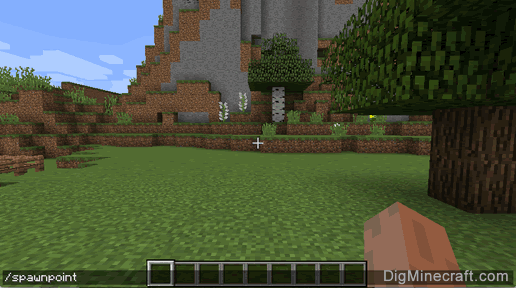
Once the command has been entered, the spawn point will be reset to your current coordinates.
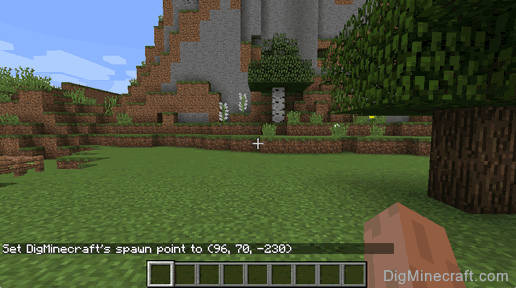
You will see a message appear in the lower left corner of the game window to indicate the new spawn point coordinates for the player. In this example, the player named DigMinecraft has a new spawn point of (96, 70, -230) which is the (x, y, z) coordinates of the current position in the game.
Reset Spawnpoint to Any Coordinates
Next, let’s explore how to reset the spawn point to a set of coordinates in the game.
To reset a spawn point to a specific set of coordinates for a player, type the player name as well as the XYZ coordinates for the new spawn point.
In this example, we will reset the spawn point for DigMinecraft to (50, 75, -100) with the following command:
Type the command in the chat window and press the Enter key to run the command.
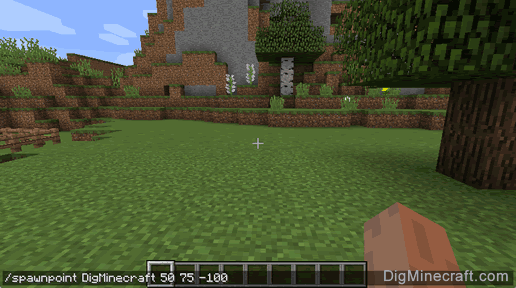
Once the command has been entered, the spawn point will be reset for the player to the coordinates entered.
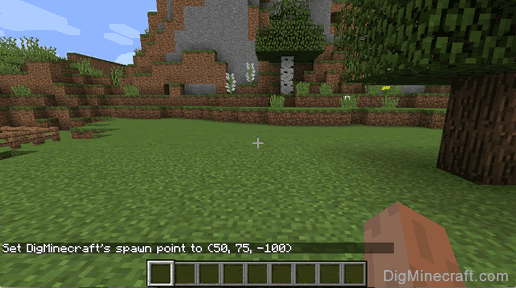
You will see a message appear in the lower left corner of the game window to indicate the new spawn point coordinates for the player. In this example, we have specified a player name of DigMinecraft and set the (x, y, z) coordinates to (50, 75, -100). This will be the location in the game where DigMinecraft will respawn after dying.
Congratulations, you have learned how to use the /spawnpoint command in Minecraft.
Как поставить спавнпоинт в майнкрафте для всех — Сайт о Игре Minecraft
Как поставить спавнпоинт в майнкрафте для всех — Советы и Инструкции
Шаг 1: Откройте мир в режиме редактирования
Перед тем, как поставить спавнпоинт в Minecraft для всех игроков, нужно открыть мир в режиме редактирования. Для этого запустите игру и выберите нужный мир.
Шаг 2: Откройте консоль команд
Чтобы поставить спавнпоинт для всех игроков, вам нужно открыть консоль команд. Нажмите на клавишу «T» на клавиатуре, чтобы открыть консоль.
Шаг 3: Введите команду для постановки спавнпоинта
Чтобы поставить спавнпоинт для всех игроков, введите следующую команду в консоли:
`/spawnpoint @a x y z`
Где x, y и z — это координаты в мире, где вы хотите поставить спавнпоинт.
Шаг 4: Нажмите на клавишу «Enter», чтобы запустить команду
После того, как вы ввели команду, нажмите на клавишу «Enter», чтобы запустить её. Спавнпоинт будет поставлен для всех игроков в мире.
— Если вы хотите изменить местоположение спавнпоинта в будущем, просто повторите эту команду с новыми координатами.
— Вы также можете использовать эту команду для установки индивидуальных спавнпоинтов для каждого игрока. Для этого вместо команды `@a` укажите ник игрока, например: `/spawnpoint Steve 10 20 30`.
— Проверьте, что у игроков в режиме выживания есть права на использование команд. Если нет, то они не смогут использовать спавнпоинт.