Pixel It
Javascript library to create pixel art from an image.
Pixel It allows you to take an image and convert into pixel art. You can define the «pixel» size, create a pixel image using a color palette and also convert to a pixel grayscale image.
You can use Pixel It to be your jump start to make some pixel art. Check the documentation for all the available api methods.
Default usage
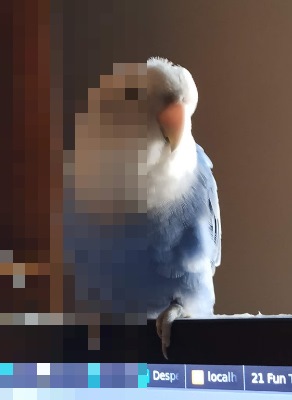
Blocksize of 7 and no other modification
Color palette
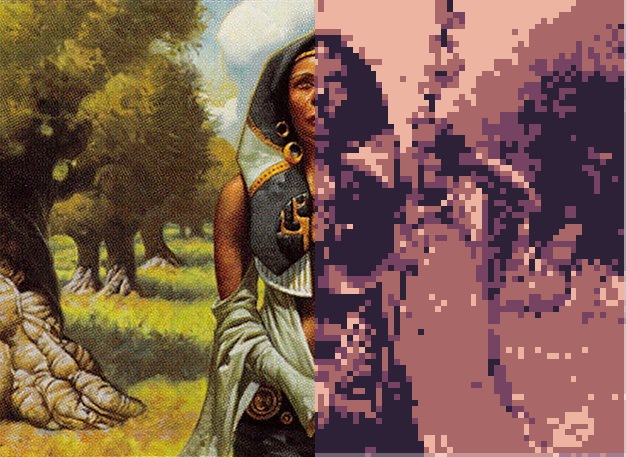
Blocksize of 17 and a 4 Color palette
Greyscale
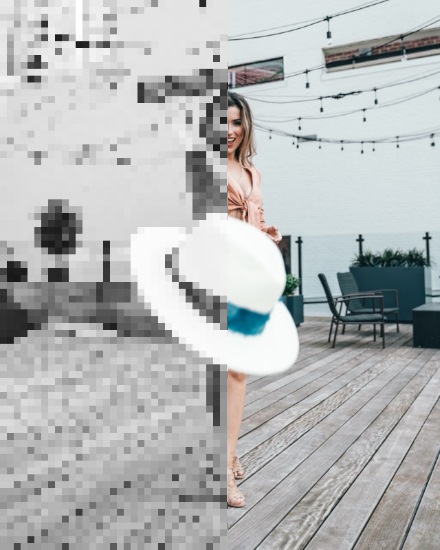
blocksize of 10 and greyscale
Color palette
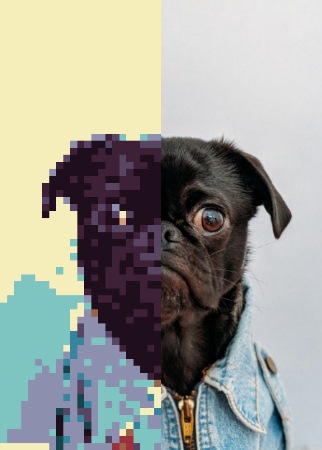
Blocksize of 8 and a 16 Color palette
Pixel It now
You can try pixel It live here, you can use the default image (just change some value) or upload an image to start see the changes.
Custom palette
Click on the color to change it
After clicking save you need to refresh to see the palette added
Clear Custom Palettes
Click clear to remove all of your custom palettes, this is irreversible. Refresh to see changes.
Did you find this real useful or just want to give some tip?  or you can can also send me some ADA: addr1q8kc33nwrysx9wc4znm9xdlvst7eq87ear0jx2n23zzjna7su5y05wag5gtgalm53gxjg4hgv3jayjc3msv57lu56psqa07hdp
Documentation
Quick usage
To use the quick default configuration you need an element from where to draw the image and canvas element with the id pixelitcanvas. Then load the pixelit.js script and apply it on an image.
Options
You can pass some options when creating the instance (you can alter them later using the api methods).
You can chain all methods together, beware that the order they are applied can change the final result.
Applying first the color palette and then the greyscale can give a slightlity different image.
.draw() draw to canvas from image source and resizes if max height or max width is reached
.hideFromImg() hides the from image element, is applied on object creation
.setDrawFrom(elem) elem to get the image to pixelate
.setDrawTo(elem) canvas elem to draw the image
.setFromImgSource(src) change the src from the image element
.setpalette(arr) sets the color palette to use, takes an array of rgb colors: [[int,int,int]], int from 0 to 255
.setMaxWidth(int) set canvas image maximum width, it can resize the output image, only used when .resizeImage() is applied
.setMaxHeight(int) set canvas image maximum height, it can resize the output image, max height overrides max width, only used when .resizeImage() is applied
.setScale(int) set pixelate scale [0. 50]
.getpalette() returns array of current palette, can’t be chained
.convertGrayscale() converts image to greyscale, apply only after .draw is called
.convertpalette() converts image with the defined color palette, apply only after .draw is called
.resizeImage() resizes the output image if bigger than the defined max Height or max Width
.pixelate() draws a pixelated version of the from image to the to canvas, , apply only after .draw is called
Photo to Pixel Art
Download Result as PNG
What is “photo2pixel”?
photo2pixel is an online image to pixel style(8-bit) tool that can generate beautiful pixel art paintings within seconds. You can try different combinations of style options to achieve the best result.
Why photo2pixel’s result is better than its alternatives?
Pixel-style images generally consist of some highly abstract meaningful regions with clear boundaries and smooth and coherent lines; in addition, unlike the continuous changes in brightness of natural images, pixel-style images have abrupt brightness and high contrast. Pixel style rendering algorithm usually solves the following two key problems: first, how to divide meaningful regions from the original image; second, how to obtain smooth, coherent and clear region boundaries. the photo2pixel‘s algorithm achieves SOTA in both of these two problems. Go to photo2pixel github project to see algorithm details.
Why photo2pixel is fast?
All calculation was done within the browser, which also means that your data will never be uploaded to the server.
Why pixel art (8-Bit) becomes popular?
Pixel art style was first appeared in 8-bit video games. Due to the limitation of computer memory and the display color, only a small number of pixels can be used to present content. With the increase of memory capacity and screen resolution, the limitation of memory and display color is no longer a problem, pixel art style has gradually evolved into a unique creative style.
Creating a Free NFT Pixel Art in just 5 Minutes

Lately, we have been hearing cases of digital artwork being sold for millions of dollars and this includes artwork that does not exist in physical form. These up-and-coming artworks are recognised as digital assets known as NFTs, Non-fungible Tokens. This form of art utilises blockchain technology to certify its originality and ownership, suggesting that the artworks are non-editable.
The good news is that anyone can become a NFT artist! For those of us who prefer to experiment with a more diverse style of art, we can create our artworks by drawing on an iPad or Photoshop. However, this article is for those with no formal background in art but are keen to create their own pixel NFT artwork for free and without the need to purchase any software programs. Let’s get started!
Step 1: Source for a Base Photo
Sketching based on your imagination sure is cool, but this skill may not come as easily for some of us. Let’s say you want to create an art piece of a drunk Merlion with dyed hair. This comes with the challenge of sourcing for an exact reference for this hipster Merlion, hence we can start with a simple Merlion image as your base photo.
Feel free to crop the base image should you only need certain parts of the photo. There is no need for now to include multiple complex shapes as the pixel art will do the work of simplifying those shapes.
Step 2: Resize the Selected Photo
The next step would be to visit the site resizeimage.net and to upload the selected base photo. Should the image size be too large, an option would be to adjust the sizing to 32px x 32px and download the resized photo as a PNG image.
Step 3: Trace & Sketch!
Now for the most exciting part, it’s time to start drawing! Visit pixilart.com/draw and upload your resized image from step 2. Do remember to add a layer before you start the tracing process. Click on the pencil tool and start tracing the resized image on the new layer.
Step 4: Color your Sketch and Add Elements
With an existing sketch, we can now proceed to colour our sketch and add elements. In this step, we will be utilising a different layer for each element, this ensures that we can edit a specific part of the image without affecting the other parts.
Ta-da! Your creation is completed!
It is highly encouraged to add more elements to the artwork for the purpose of mix and match! By playing around with the different layers, you can expand your very own NFT art collection!
This marks the end of Part 1 for our NFT artwork creation guide, be sure to look out for Part 2 as we walk you through a step-by-step guide on how we can get your artwork out in the market! Be sure to follow us on Medium or on Instagram @2359media.
Пикселизация фотографии онлайн
Главное нужно указать файл картинки на компьютере или телефоне, выбрать уровень пикселизации, нажать кнопку OK внизу. Остальные настройки выставлены по умолчанию.
Примеры картинок с разными уровнями пикселизации:
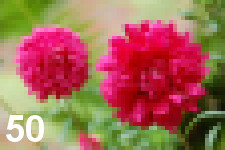
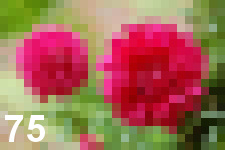
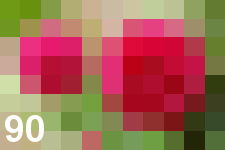
Цифры 50, 75 и 90 в примерах указывают на выбранный уровень пикселизации. Также стоит учесть, что для фотографий и картинок абсолютно разных размеров результат пикселизации может быть разным и его нужно корректировать, изменяя значение уровня пикселизации. Чем больше картинка, тем больше должен быть выбран уровень пикселизации.
Исходное изображение никак не изменяется. Вам будет предоставлена другая обработанная картинка.