How to Use the Locate Command in Minecraft
This Minecraft tutorial explains how to use the /locate command with screenshots and step-by-step instructions.
Now you can quickly and easily find biomes, points of interest, and structures in Minecraft with the /locate command. You can then use the /tp command to teleport there instantly!
Let’s explore how to use this cheat (game command).
Supported Platforms
The /locate command is available in the following versions of Minecraft:
| Platform | Supported (Version*) |
|---|---|
 Java Edition (PC/Mac) Java Edition (PC/Mac) |
Yes (1.11) |
 Pocket Edition (PE) Pocket Edition (PE) |
Yes (1.0) |
 Xbox 360 Xbox 360 |
No |
 Xbox One Xbox One |
Yes (1.2) |
 PS3 PS3 |
No |
 PS4 PS4 |
Yes (1.14.0) |
 Wii U Wii U |
No |
 Nintendo Switch Nintendo Switch |
Yes (1.5.0) |
 Windows 10 Edition Windows 10 Edition |
Yes (1.0) |
 Education Edition Education Edition |
Yes |
* The version that it was added or removed, if applicable.
NOTE: Pocket Edition (PE), Xbox One, PS4, Nintendo Switch, and Windows 10 Edition are now called Bedrock Edition. We will continue to show them individually for version history.
Requirements
To run game commands in Minecraft, you have to turn cheats on in your world.
Locate Command
- Java
- PE
- Xbox
- PS
- Nintendo
- Win10
- Edu
Locate Command in Minecraft Java Edition (PC/Mac)
In Minecraft Java Edition (PC/Mac) 1.19 and 1.20, the /locate command has different syntaxes depending on what you would like to find.
To find the closest coordinates of a biome: (which replaces the /locatebiome command starting in 1.19)
To find the closest coordinates of a point of interest:
To find the closest coordinates of a structure:
In Minecraft Java Edition (PC/Mac) 1.11, 1.12, 1.13, 1.14, 1.15, 1.16, 1.17 and 1.18, the syntax to find the closest coordinates of a structure is:
Definitions
- biome_name is the Minecraft ID of the biome that you wish to find. You must be in the correct dimension (Overworld, Nether, End) to locate the corresponding biome. For example, you must be in the Nether to locate the warped_forest biome, you must be in the Overworld to locate the bamboo_jungle biome, etc. (See List of Biome IDs.)
- poi_name is the Minecraft ID of the point of interest that you wish to find. You must be in the correct dimension (Overworld, Nether, End) to locate the corresponding poi.
- structure_name is a specific structure that you wish to find. You must be in the correct dimension (Overworld, Nether, End) to locate the corresponding structure. (See List of Structure IDs.)
Locate Command in Minecraft Pocket Edition (PE)
In Minecraft Pocket Edition (PE), the /locate command has different syntaxes depending on what you would like to find.
To find the closest coordinates of a biome:
To find the closest coordinates of a structure:
Definitions
- biome_name is the Minecraft ID of the biome that you wish to find. You must be in the correct dimension (Overworld, Nether, End) to locate the corresponding biome. (See List of Biome IDs.)
- structure_name is a specific structure that you wish to find. You must be in the correct dimension (Overworld, Nether, End) to locate the corresponding structure. (See List of Structure IDs.)
- useNewChunksOnly is a true or false value to indicate whether you wish to search for a structure in new chunks only.
Locate Command in Minecraft Xbox One Edition
In Minecraft Xbox One Edition, the /locate command has different syntaxes depending on what you would like to find.
To find the closest coordinates of a biome:
To find the closest coordinates of a structure:
Definitions
- biome_name is the Minecraft ID of the biome that you wish to find. You must be in the correct dimension (Overworld, Nether, End) to locate the corresponding biome. (See List of Biome IDs.)
- structure_name is a specific structure that you wish to find. You must be in the correct dimension (Overworld, Nether, End) to locate the corresponding structure. (See List of Structure IDs.)
- useNewChunksOnly is a true or false value to indicate whether you wish to search for a structure in new chunks only.
Locate Command in Minecraft PS4 Edition
In Minecraft PS4 Edition, the /locate command has different syntaxes depending on what you would like to find.
To find the closest coordinates of a biome:
To find the closest coordinates of a structure:
Definitions
- biome_name is the Minecraft ID of the biome that you wish to find. You must be in the correct dimension (Overworld, Nether, End) to locate the corresponding biome. (See List of Biome IDs.)
- structure_name is a specific structure that you wish to find. You must be in the correct dimension (Overworld, Nether, End) to locate the corresponding structure. (See List of Structure IDs.)
- useNewChunksOnly is a true or false value to indicate whether you wish to search for a structure in new chunks only.
Locate Command in Minecraft Nintendo Switch Edition
In Minecraft Nintendo Switch Edition, the /locate command has different syntaxes depending on what you would like to find.
To find the closest coordinates of a biome:
To find the closest coordinates of a structure:
Definitions
- biome_name is the Minecraft ID of the biome that you wish to find. You must be in the correct dimension (Overworld, Nether, End) to locate the corresponding biome. (See List of Biome IDs.)
- structure_name is a specific structure that you wish to find. You must be in the correct dimension (Overworld, Nether, End) to locate the corresponding structure. (See List of Structure IDs.)
- useNewChunksOnly is a true or false value to indicate whether you wish to search for a structure in new chunks only.
Locate Command in Minecraft Windows 10 Edition
In Minecraft Windows 10 Edition, the /locate command has different syntaxes depending on what you would like to find.
To find the closest coordinates of a biome:
To find the closest coordinates of a structure:
Definitions
- biome_name is the Minecraft ID of the biome that you wish to find. You must be in the correct dimension (Overworld, Nether, End) to locate the corresponding biome. (See List of Biome IDs.)
- structure_name is a specific structure that you wish to find. You must be in the correct dimension (Overworld, Nether, End) to locate the corresponding structure. (See List of Structure IDs.)
- useNewChunksOnly is a true or false value to indicate whether you wish to search for a structure in new chunks only.
Locate Command in Minecraft Education Edition
In Minecraft Education Edition, the syntax to find the closest coordinates of a structure is:
Definitions
- structure_name is a specific structure that you wish to find. You must be in the correct dimension (Overworld, Nether, End) to locate the corresponding structure. (See List of Structure IDs.)
Examples
- Java
- PE
- Xbox
- PS
- Nintendo
- Win10
- Edu
Example in Java Edition (PC/Mac) 1.19 and 1.20
To find the coordinates of the biome called the Flower Forest in Minecraft 1.19 and 1.20 (must be in the Overworld dimension):
To find the coordinates of a point of interest such as a cartographer (must be in the Overworld dimension):
To find the coordinates of a the structure called ruined portal in the Nether (must already be in the Nether dimension):
Example in Java Edition (PC/Mac) 1.16, 1.17 and 1.18
To find the coordinates of the nearest Bastion Remnant (must already be in the Nether dimension) in Minecraft 1.16, 1.17, and 1.18:
To find the coordinates of the nearest Witch Hut (must be in the Overworld dimension):
Example in Java Edition (PC/Mac) 1.14 and 1.15
To find the coordinates of the nearest Pillager Outpost in Minecraft 1.14 and 1.15:
Example in Java Edition (PC/Mac) 1.13
To find the coordinates of the nearest Buried Treasure in Minecraft 1.13:
Example in Java Edition (PC/Mac) 1.11 and 1.12
To find the coordinates of the nearest Woodland Mansion in Minecraft 1.11 and 1.12:
Example in Pocket Edition
To find the coordinates of the nearest Warped Forest in Minecraft PE (must be in the Nether dimension):
To find the coordinates of the nearest Pillager Outpost:
To find the coordinates of the nearest Woodland Mansion:
Example in Xbox One Edition
To find the coordinates of the nearest Snowy Slopes in Minecraft Xbox One Edition:
To find the coordinates of the nearest Ancient City:
To find the coordinates of the nearest Buried Treasure:
Example in PS4 Edition
To find the coordinates of the nearest Deep Dark in Minecraft PS4 Edition:
To find the coordinates of the nearest Abandoned Mineshaft:
To find the coordinates of the nearest Bastion Remnant:
Example in Nintendo Switch Edition
To find the coordinates of the nearest Jagged Peaks in Minecraft Nintendo Switch Edition:
To find the coordinates of the nearest Shipwreck:
To find the coordinates of the nearest Abandoned Mineshaft:
Example in Windows 10 Edition
To find the coordinates of the nearest Bamboo Jungle in Minecraft Windows 10 Edition:
To find the coordinates of the nearest Temple (closet Jungle Temple, Pyramid, Witch Hut or Igloo):
To find the coordinates of the nearest Stronghold:
Example in Education Edition
To find the coordinates of the nearest Ocean Monument in Minecraft Education Edition:
To find the coordinates of the nearest Village:
To find the coordinates of the nearest Stronghold:
How to Enter the Command
1. Open the Chat Window
The easiest way to run a command in Minecraft is within the chat window. The game control to open the chat window depends on the version of Minecraft:
- For Java Edition (PC/Mac), press the T key to open the chat window.
- For Pocket Edition (PE), tap on the chat button at the top of the screen.
- For Xbox One, press the D-Pad (right) alt=»xbox one» width=»21″ height=»21″ />on the controller.
- For PS4, press the D-Pad (right) alt=»ps4″ width=»21″ height=»21″ />on the controller.
- For Nintendo Switch, press the right arrow button on the controller.
- For Windows 10 Edition, press the T key to open the chat window.
- For Education Edition, press the T key to open the chat window.
2. Type the Command
We will cover examples of how to use the /locate command to find structures as well as biomes. You can also use the /locate command to find POIs.
Locate a Structure
In this example, we will locate an Ancient City in Minecraft Java Edition (PC/Mac) 1.20 with the following command:
Type the command in the chat window. As you are typing, you will see the command appear in the lower left corner of the game window. Press the Enter key to run the command.
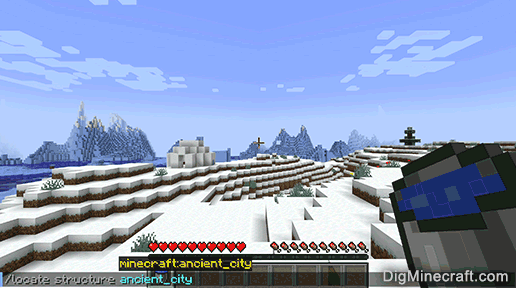
Once the cheat has been entered, you should see the coordinates of the nearest Ancient City.
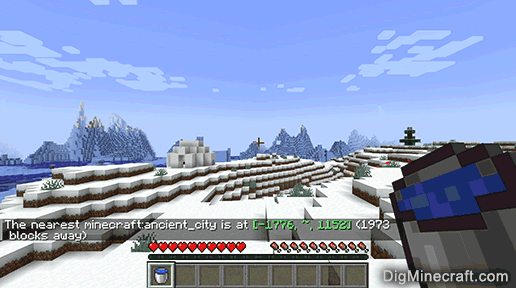
In this example, the /locate command output the following message to indicate the coordinates of the Ancient City: " The nearest minecraft:ancient_city is at [-1776,
, 1152] (1973 blocks away) ".
We can then use the /tp command to teleport to these coordinates (we will use y = -21 since we weren’t given a y-coordinate and the Ancient City is deep underground):
Find a Biome
In this next example, we will locate a Mushroom Island biome (also called Mushroom Fields) in Minecraft Java Edition (PC/Mac) 1.20 with the following command:
Type the command in the chat window.
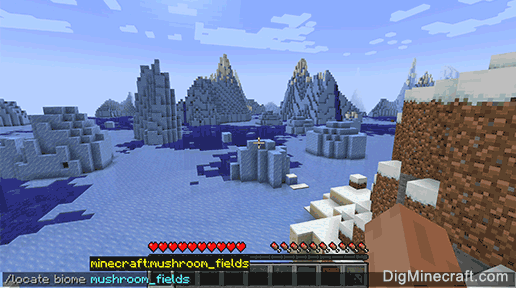
Once the cheat has been entered, you should see the coordinates of the nearest Mushroom Island biome.
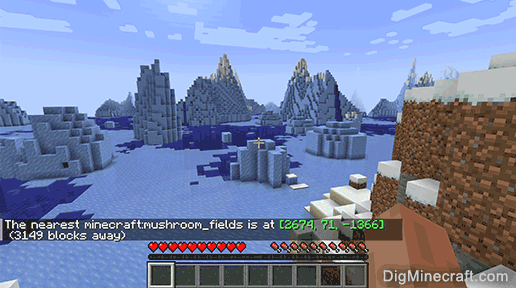
In this example, the /locate command output the following message to indicate the coordinates of the nearest Mushroom Island: " The nearest minecraft:mushroom_fields is at [2674, 71, -1366] (3149 blocks away) ".
We can then use the /tp command to teleport to these coordinates:
Congratulations, you just learned how to use the /locate command in Minecraft to find both structures and biomes!
How To Use
If none of the below helps, please report in the comments and include your seed, platform and version, and coordinates.
Common user errors
If your in-game world doesn't match the map here at all, it's most likely due to one of the following:
- you entered the wrong seed or coordinates
- you selected the wrong edition or version (the one used to generate the region you look at)
- you used mods or resource packs that affect world generation
- (for slime chunks) you didn't wait long enough, since they have a very low spawn rate even in slime chunks
Mixed version worlds
If you started your world on an older version, you'll have to switch between the versions in the app. Always select the version that was used to generate the chunks you're looking at.
Coastlines
The coastlines for versions 1.18 and above don't match up perfectly. This is not a bug, but because the map shows the underlying biomes instead of the exact terrain. Near coasts, ocean and river biomes often have land, while land biomes can be underwater.
Known limitations
Locations that don't exist in-game
Many features are not 100% accurate, i.e., locations can be wrong or missing. These include:
- Dungeons
- End City Ships, and End Cities in general on Bedrock Edition
- World Spawn Positions
- Amethyst Geodes (near caves, mineshafts, etc.)
- Desert & Jungle Temples on Java Edition 1.18+
Various other structures such as villages and igloos can sometimes fail to generate in-game as well, but this should happen far less frequently than for the features mentioned above.
Incccurate x/z coordinates
For some features like fossils, ruined portals and trail ruins the app currently only points to the center of the chunk they're generated in. Since those structures are small, often buried, and can be offset 10-20 blocks from the chunk center, you might have to do some searching/digging to find them.
Missing y coordinates
The y coordinate isn't shown for every feature. For structures that always generate on the surface or seafloor, this shouldn't be an issue. In other cases, like mineshafts, strongholds and nether fortresses, the structures can easily be found by searching at different heights at the given x/z coordinates.
Unfortunately, this leaves some structures like fossils on Bedrock and ruined portals that spawn underground, which will require some manual effort to find.
Requirements
For technical reasons, you need to know the seed of your world to use Seed Map, unless, of course, you want to find a seed for a new world. If you're playing SSP, the app is able to fetch the seed from your savegame. Alternatively, you can use the /seed command ingame. In SMP, you can use the same command if you have sufficient rights. Otherwise, however, you're dependent on the server owner, who started the world and has access to the savegame and config files.
Browser
This app uses some relatively new web technologies. As a result, some features may be disabled for older browsers. I recommend using the latest version of a major browser such as Chrome, Firefox, Edge or Safari.
Usage
Seed Selection
The first thing you should do is select a seed and version. You can either type it in manually, or you can load it from your savegame. The latter can be done by clicking on "Load from Save. " and selecting your level.dat, or by drag&dropping the level.dat file into your browser window. Level.dat is a small file located in the folder of every Minecraft savegame. You can find the savegames in the saves folder of your Minecraft installation. On Windows you can use %appdata%\.minecraft\saves to get to that folder.
You should also know that a seed is always a number (up to around 20 digits). If you type in anything else (like letters), it will be converted to a number. The app does this the same way Minecraft does, so it's safe to use letters (and other characters) as well.
Dimension and Feature Selection
Below the seed and version, you can also choose the Minecraft dimension that you want to view (Overworld, Nether or End). This, and the version you use, will affect which features can be enabled. To toggle certain features, click on the icons in the features box just above the map.
You can also expand and collapse features box by clicking the arrow on the right side of the box to show the full names of the features, as well as some more options.
Note that some features will only show if you zoomed in enough. This is to keep the app fast and to not flood it with icons. The app will show a warning and all affected features will be highlighted once that happens.
Navigation
Once you entered all the options you can start using the map. To scroll, use your arrow keys while your mouse cursor points at the map, or move your mouse while holding down the left mouse button. You can use the slider below the map or your mousewheel for zooming. The lower inputs allow you to go to a specific point (e.g., your base) of the map and set a marker there. You can always remove and add the marker by double clicking on the map. The "Save Map" button allows you to save the currently shown map as png image file.
Selecting structure locations
You can click or tap on the icons on the map to see their exact coordinates in the game. For some structures, additional details are shown as well.
Touchscreen
When using a touch-enabled device, an extra option for enabling/disabling touchscreen control will appear below the map. With that option enabled, you can drag the map with your finger to navigate, you can pinch to zoom in and out, and you can tap and hold to set a marker on the map. By double tapping on the map, you can quickly enable/disable the functionality as well.
Как найти постройки в Minecraft Java Edition?

Игры
Телепортируйтесь прямо к ближайшему месту кораблекрушения или древнему городу.
В играх есть два типа людей… Те, кто жульничает, и те, кто не жульничает. Больше силы для вас, в какой бы лагерь вы ни попали, но если вы в последнем, к сожалению, это руководство не для вас. В этой статье мы рассмотрим, как найти определенные структуры в Minecraft Java Edition… и да, это связано с читерством.
Что такое структуры Майнкрафт?
Проще говоря, термин «структура» в Minecraft охватывает все, что является предварительно сгенерированным зданием или, ну, структурой. Подумайте об окаменелостях Нижнего мира, разрушенных порталах, деревнях и многом другом. Это в основном места в Minecraft, которые предоставляют какую-то добычу или помощь в выживании в дикой природе. Например, затонувшие корабли и пустынные пирамиды содержат несколько очень полезных сундуков, иглу и деревни предлагают кровати для ночного сна, а адские крепости — единственное место, где можно собрать огненные стержни. Если вы играете в Minecraft на выживание, вам придется найти определенные строения, если вы когда-нибудь захотите сразиться с Эндер-драконом.
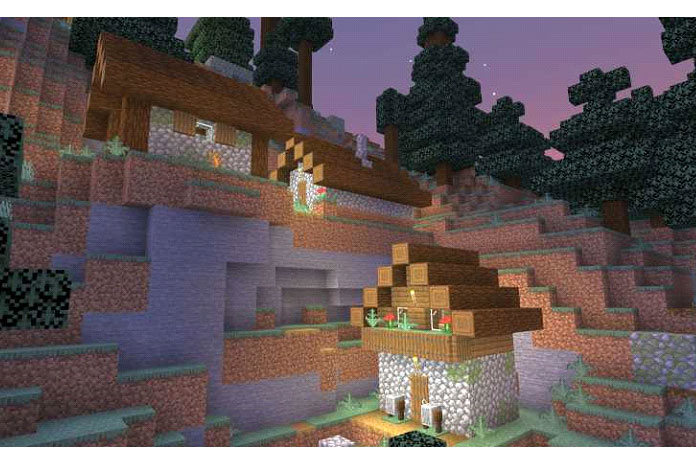
Полный список «строений» Minecraft по состоянию на The Wild Update
- Ancient City
- Bastion Remnant
- Buried Treasure
- Desert Pyramid
- End City
- Nether Fortress
- Igloo
- Jungle Temple
- Mineshaft
- Nether Fossil
- Ocean Monument
- Ocean Ruin
- Pillager Outpost
- Ruined Portal
- Shipwreck
- Stronghold
- Village
- Witch hut
- Woodland Mansion
Как найти постройки в Minecraft?
Итак, здесь мы приступаем к делу; как найти структуры Minecraft с помощью чит — команд. Если вы так расстраиваетесь, когда застреваете в видеоигре, что предпочитаете бросить, чем продолжать пытаться, то этот вариант может быть прямо на вашей улице. Вы пожертвуете получением достижений, но сэкономите себе драгоценное время.
Во-первых, убедитесь, что вы играете в мире Minecraft с включенными читами.
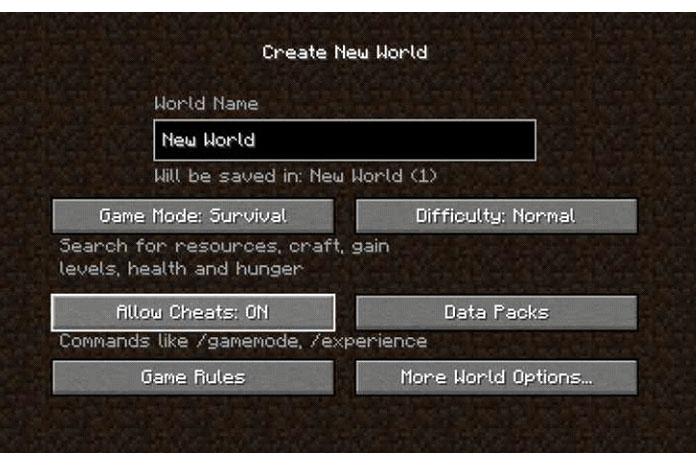
- Для нового мира вы сделаете это в настройках перед созданием мира.
- Для существующего мира откройте меню игры, выберите «Открыть в локальной сети», измените «Разрешить читы» на «ВКЛ» и нажмите «Запустить мир локальной сети».
Оттуда вы сможете вводить команды в свой мир Minecraft. Чтобы найти структуру, просто введите:
Если вы не уверены в названии структуры, вы увидите список, который можно просто прокрутить. Нажмите Enter, как только вы введете нужную команду, и вы увидите некоторые координаты в чате (откройте чат, нажав T). Эти координаты являются расположением ближайшей структуры выбранного вами типа к вашему текущему местоположению. На данный момент все, что вам нужно сделать, это щелкнуть координаты и нажать Enter. Обратите внимание, что это перенесет вас в координаты, но на тот же уровень Y, на котором вы были, когда телепортировались. Если вы хотите изменить это, вам нужно ввести желаемый уровень Y в команде. Формат команды tp следующий:
| /tp @s [X level] [Y level] [Z level] | Example: /tp @s 1234 50 -4321 |
Как найти биомы в Minecraft?
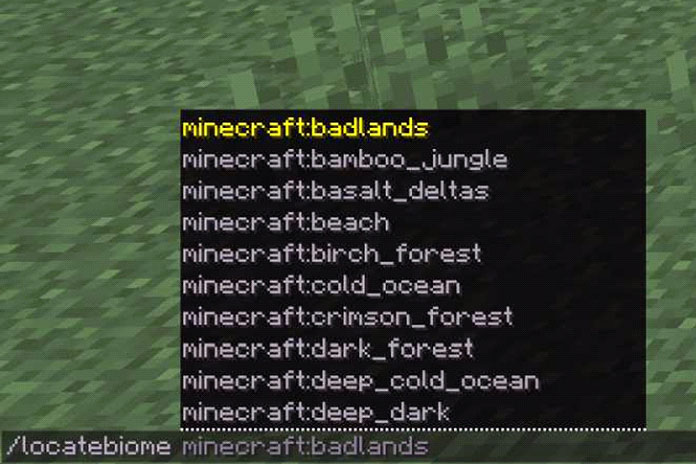
Если вы предпочитаете найти биом Minecraft, а не структуру, то это работает примерно так же. Введите команду /locate в чат, и вы увидите опцию /locatebiome. Опять же, вы можете ввести или выбрать желаемый биом, и вам будут предоставлены координаты ближайшего биома этого типа.
Как найти постройки в Майнкрафте без читов?
Ну, это немного спорный подзаголовок, так как поиск структур без читов просто требует старомодного времени и усилий. И знать, где искать. И некоторые, конечно, легче найти, чем другие. Кораблекрушения, например, довольно часто появляются в океанах. Запрыгивайте в лодку и плывите некоторое время, и вы обязательно заметите кораблекрушение на дне океана (если ваши настройки освещения достаточно яркие!).
Есть несколько труднодоступных структур, которые вы можете найти, используя игровую механику. Например, если вы ищете особняк в лесу, вы можете приобрести карту исследователя леса у картографа уровня «Подмастерье». То же самое касается монументов океана и карты исследователя океана.