Как выделить террарии больше оперативной памяти

При игре с модами через tModLoader объем допустимой памяти для модов составляет 4 ГБ, в гайде подробно описано как задействовать всё ОЗУ вашего ПК.
Так же это работает и для мультиплеера.
When playing with mods via tModLoader, the amount of allowed memory for mods is 4 GB, the guide describes in detail how to use all the RAM on your PC.
This also works for multiplayer.
 1
1
 1
1
 1
1
 4
4
 2
2
 2
2
 1
1
 1
1
 1
1

| 6,883 | уникальных посетителей |
| 100 | добавили в избранное |

Террария 32-битная игра и соответственно ModLoader тоже сделан под 32. В 32 битной системе нельзя задействовать больше 4 ГБ оперативной памяти.
Мы же с вами будем апать tModLoader в 64-разрядную версию.
Terraria is a 32-bit game and, accordingly, ModLoader is also made for 32. In a 32-bit system, you cannot use more than 4 GB of RAM.
We are going to up tModLoader to the 64-bit version.
——————————————————————————
Ссылки и пути установки\Links and installation paths::
Вам ведь нужны пруфы? Вот вам пруфы\You need proofs, right? Here are the proofs:
1. Переходим на гитхаб разработчика и скачиваем 64-битную версию лоадера.
Находится внизу страницы, нас интересует tModLoader64bit.zip
Go to the developer’s github and download the 64-bit version of the loader.
Located at the bottom of the page, we are interested in tModLoader64bit.zip
2. Открываем путь игры и закидываем поверх файлы из архива с заменой.
У нас будет два новых ярлыка (выделены на скрине)
Open the path of the game and throw over the files from the archive with the replacement.
We will have two new shortcuts (highlighted in the screenshot)
2.5 Если у вас видеокарта AMD, советую после скачать tmodloader_x64_vulkan.zip и закинуть поверх tModLoader64bit. Производительность заметно улучшится.
If you have an AMD graphics card, I advise you to download tmodloader_x64_vulkan.zip afterwards and put tModLoader64bit over it. The performance will improve markedly.
3. Добавляем tModLoader64bit в библиотеку стим, для этого нажимаем в стиме внизу слева "Добавить игру" — "Добавить стороннюю игру" и указываем путь к tModLoader64bit.
Add tModLoader64bit to the steam library, for this, click in the Steam at the bottom left "Add game" — "Add a third-party game" and specify the path to tModLoader64bit.
4. Запускаем tModLoader64bit. И смотрим в левый нижний угол, если вы видите следующее:
Launch tModLoader64bit. And look in the lower left corner if you see the following:
Значит у тебя все получилось, похлопай себе
И, пожалуйста, не забудь поставить оценку этому гайду.
So you did it, give yourself a pat
And, pls, don’t forget to rate this guide.
Как выделить больше оперативной памяти для Terraria (пошаговое руководство)
Вы еще один любящий экшн игрок в Terraria, и ваша игра вылетела, когда вы проходили через земли приключений с сотнями видов оружия, катастроф и врагов? К счастью, вы можете выделить больше оперативной памяти для Terraria, чтобы избежать таких проблем.
Чтобы выделить Terraria больше оперативной памяти, запустите игру. Откройте Диспетчер задач на своем ПК и перейдите на вкладку «Подробности». Щелкните правой кнопкой мыши игру Terraria и выберите «Установить приоритет» в меню. Выберите «Высокий» или «В реальном времени» приоритет в подменю и выберите «Изменить приоритет» в окне подтверждения.
Чтобы сделать вещи более понятными для вас, мы нашли время, чтобы написать подробное пошаговое руководство по выделению большего количества оперативной памяти для Terraria. Мы также рассмотрим причины сбоев Terraria, такие как системные требования, использование памяти и т. д.
Выделите больше оперативной памяти для Terraria
Если вы не знаете, как выделить больше оперативной памяти для Terraria, наши 2 пошаговых метода помогут вам пройти этот процесс без особых проблем.
Способ №1: Использование диспетчера задач
Вы можете использовать диспетчер задач Windows, чтобы быстро выделить больше оперативной памяти для Terraria следующим образом.
- Запустите игру Terraria и откройте диспетчер задач.
- Перейдите на вкладку «Подробности».
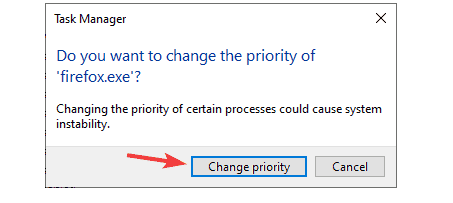
- Щелкните правой кнопкой мыши игру Terraria и выберите «Установить приоритет» в меню.
- Выберите «Высокий» или «Реальный» приоритет в подменю.
- Выберите «Изменить приоритет» в окне подтверждения, и игре будет выделено больше оперативной памяти.
Способ №2: использование tModLoader
Если вы используете много модов в Terraria, ваша система может дать сбой. Следовательно, вам нужно выделить больше оперативной памяти для игры с помощью этих шагов.
Шаг №1: Добавление tModLoader в вашу библиотеку Steam
Прежде чем выделить больше оперативной памяти для Terraria, вам необходимо установить 64-битный tModLoader через Steam.
- Запустите клиент Steam на своем компьютере и перейдите в раздел «Библиотека».
- Найдите и разверните раздел «Добавить игру» на левой панели.
- Нажмите «Добавить не Steam-игру» и добавьте в клиент файл «tmodloader64bit.exe».
После добавления tModLoader вы сможете использовать все моды с игрой Terraria, которая требует больше оперативной памяти.
Шаг № 2. Выделение дополнительной оперативной памяти для Terraria с помощью tModLoader
На втором этапе измените файл Terraria на 64-битную версию, чтобы выделить больше оперативной памяти, перетащив несколько файлов в существующую папку с игрой.
-
Загрузите бесплатную версию tModLoader онлайн.
Запустите Terraria через tModLoader, чтобы запустить игру в 64-битном режиме без проблем с нехваткой оперативной памяти.
Причины сбоя Terraria
Компьютеры без локальных программных компонентов DSM более склонны к сбою игры Terraria и отображению сообщения «Системе не хватает памяти», когда это происходит.
Во-первых, убедитесь, что ваше устройство совместимо с игрой, особенно в части оперативной памяти. Иногда из-за нехватки памяти игра часто вылетает.
Системные требования Terraria и использование памяти
В Terraria можно играть на ПК, планшетах и мобильных устройствах. Чтобы наслаждаться игрой без сбоев, вы должны знать, совместимо ли ваше устройство с игрой или нет.
Вот требования к ПК, мобильным устройствам и планшетам, чтобы играть на них в Terraria.
Требования к ПК
-
Windows выше 7, 8, 8.1, 10, XP и Vista.
Требования к мобильным устройствам и планшетам
Резюме
В этом руководстве мы обсудили, как выделить больше оперативной памяти для Terraria. Мы также обсудили требования к различным устройствам для игры в Terraria и причины частых сбоев игры.
Надеюсь, ваша проблема решена, и теперь вы можете эффективно выделять больше оперативной памяти для своей игры и играть со всеми модами без задержек и сбоев.
Часто задаваемые вопросы
Игроки часто пытаются запускать различные моды, чтобы изменить функции улучшения качества и жизни в Terraria. Однако, чтобы воспользоваться этими функциями и уберечь игру от зависаний, вам необходимо выделить больше оперативной памяти для Terraria.
Возникла проблема при попытке запустить моды в Террарии. Благодаря фантастической работе сообщества можно потреблять тонны контента, в том числе некоторые улучшения качества жизни, которые могут сделать только моды. Однако запуск многих из этих модов может спровоцировать сбой Terraria, особенно с модификациями текстур.
How to Allocate More RAM to Terraria
Before elaborating on how to allocate more RAM to Terraria, I would like to inform a couple of situations you may need to consider.
In general, Terraria does not consume too much memory. It is a 32-bit based game. This means the game will perform well at 4GB RAM.
But when you are willing to run mods with Terraria then it will need more RAM. You can allocate more RAM by using tModLoader.
In this article, the necessary steps are provided that you can follow to allocate more RAM to Terraria. So, without any further ado, let’s begin.
Table of Contents
Why You Need to Allocate More RAM to Play Terraria
It is totally fine when you run Terraria on its own. But, if you try to run various kinds of mods in Terraria, you may face trouble.
These mods can add quality and life improvement features in Terraria. But these are not created by the developers. Basically, the related community offers several mods for Terraria.
So, if you want to get the advantage of mods to play Terraria, you will have to allocate more memory.
Add tModLoader to Steam Library
Before applying the memory allocating process, you have to install tModLoader 64-bit through Steam. It is the initial work that you will need to do before allocating more RAM. To do so, you can follow the below steps.
Step 1
Open Steam and tap the LIBRARY tab.
Step 2
Look at the left bottom. Then find and expand the ‘Add a Game‘ section.
Step 3
Next, you have to click on the ‘Add a Non-Steam game‘ option and add the tmodloader64bit.exe file.
After adding the dedicated game’s mod manager tModLoader, you will be able to use all kinds of mods. To use these mods with Terraria, you have to allocate more memory.
How to Allocate More RAM to Terraria
In a word, you need to modify the Terraria file to a 64-bit version to allocate more RAM.
To do so, you have to execute some installations and drag some files to existed Terraria folder.
Step 1
Download the tModLoader directly from the internet. It’s totally out of cost.
Step 2
Unzip the tML64 file inside the Terraria folder location.
Step 3
Open Steam and navigate tModLoader folder from LIBRARY.
Step 4
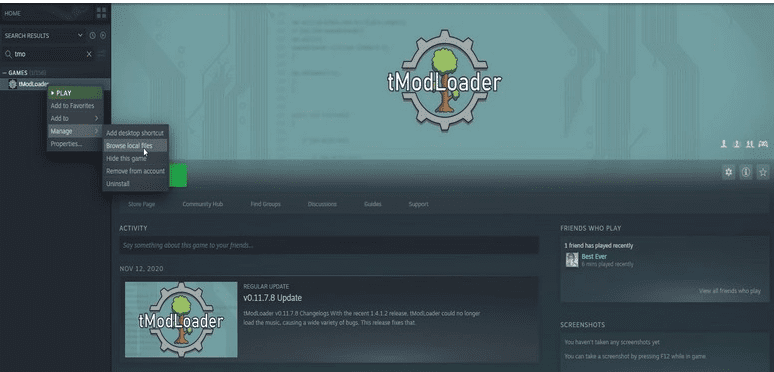
Next, right-click on tModLoader first. Then, expand the ‘Manage’ section and click on the ‘Browse local files’.
Step 5
While the tModLoader folder appears, you will have to copy all the files from the unzipped file and paste them inside the existing file location. Here, you need to select ‘replace all files’ to finish the dragging.
Finally, you have to check the change, is it working or not? To check, you need to launch Terraria through tModLoader. It may take time to load the game properly. After that, the game will be running 64-bit smoothly without having memory trouble.
So, this is how you can allocate more RAM or memory.
Alternative Way
If you are not willing to install third-party software or want avoid this hassle then you can allocate more RAM to Terraria from the Task Manager. To do so –
- Step 1: Press Ctrl + Shift + Esc and launch Task Manager.
- Step 2: Click on Details tab and look for Terraria.exe file.
- Step 3: Now, right-click on that file and then click on Set priority.
- Step 4: Now, select Realtime and save the change.
Now, more RAM will be allocated to Terraria.
[Bonus Info] System Requirement of Terraria
OS: Windows 10, 8, 7, Vista, XP
Processor: 2.0 GHz.
Memory/RAM: 2.5GB.
Video Card: 128MB Video Memory
DirectX®: 9.0c or Greater
Frequently Asked Questions
Does Terraria take a lot of RAM?
No, it doesn’t take a lot of memory. It will need 1 to 2 GB to run smoothly.
How much RAM does Terraria server use?
If you are willing to use Terraria server with 10 or more players then you should have at least 1 to 2 GB of RAM.
Final Words
I assume that you will capture the full process of how to allocate more RAM to Terraria after exploring the article. So, running mods in Terraria will not be a matter to you from now. You can try to allocate RAM from task manager but if you fail to do so then you can use tModLoader. If you have encountered any issue while following aforementioned steps, don’t let us know in the comment box.
How To Allocate More RAM to Terraria
 By Jacob Hicks September 14, 2022 December 4, 2022
Are you another action-loving Terraria player, and your game crashed while passing through the lands of adventures with hundreds of weapons, disasters, and enemies? Fortunately, you can allocate more RAM to Terraria to avoid such issues.
To allocate more RAM to Terraria, launch the game. Open Task Manager on your PC and click the “Details” tab. Right-click on the Terraria game and click “Set Priority” from the menu. Select “High” or “Realtime” priority from the sub-menu and choose “Change Priority” in the confirmation box.
To make things more understandable for you, we took the time to write a comprehensive step-by-step guide on allocating more RAM to Terraria. We will also explore the reasons behind Terraria crashing, such as system requirements, memory usage, etc.
Allocate More RAM to Terraria
If you don’t know how to allocate more RAM to Terraria, our 2 step-by-step methods will help you go through this process without facing much trouble.
Method #1: Using the Task Manager
You can use your Windows Task Manager to allocate more RAM to Terraria quickly in the following way.
- Launch the Terraria game and open the Task Manager.
- Head to the “Details” tab.
- Right-click on the Terraria game and click “Set Priority” from the menu.
- Select “High” or “Realtime” priority from the sub-menu
- Choose “Change Priority” in the confirmation box, and more RAM will be allocated to the game.
Method #2: Using tModLoader
If you are running a lot of mods in Terraria, your system might crash. Therefore, you need to allocate more RAM to the game with these steps.
Step #1: Adding tModLoader to Your Steam Library
Before allocating more RAM to Terraria, you need to install tModLoader 64-bit through Steam.
- Launch the Steam client on your computer and head to the “Library” section.
- Locate and expand the “Add a Game” section in the left pane.
- Click “Add a Non-Steam game” and add the “tmodloader64bit.exe” file to the client.
After adding tModLoader, you can use all mods with the Terraria game, which requires more RAM.
Step #2: Allocating More RAM to Terraria With tModLoader
In the second step, modify the Terraria file to a 64-bit version to allocate more RAM by dragging a few files to the existing game folder.
- Download the free version of tModLoader online.
- Unzip the tML64file in the game folder (Terraria) location.
- Launch the Steam client and go to the “tModLoader” folder from the “Library” section.
- Right-click on tModLoader, expand “Manage”, and select “Browse local files”.
- Copy all the files from the unzipped Tml64 file and replace them all inside the existing file location.
Launch Terraria through tModLoader to run the game in 64-bit without facing low RAM issues.
Reasons Behind Terraria Crashing
Computers with no local DSM program components are more prone to crash the Terraria game and display a message “The system got out of memory exception” when it happens.
First, ensure your device’s compatibility with the game, especially in the RAM department. Sometimes, due to insufficient memory space, the game causes crashes frequently.
Terraria System Requirements and Memory Usage
Terraria can be played on PC, tablets, and mobiles. To enjoy the game without any hiccups, you should know whether your device is compatible with the game or not.
Here are the PC, mobile, and tablet requirements to play Terraria on them.
PC Requirements
- Windows above 7, 8,8.1, 10, XP, and Vista.
- All Linux or Mac versions.
- 1080p monitor/screen resolution.
- 60 frames/sec display.
- Graphics card supporting Direct X9.
Mobile and Tablet Requirements
- 200 MB HDD memory (at least).
- HD 3000 graphics card.
- Intel Core 2 Duo T5750 or E8400.
- 2-4 GB RAM.
- Athlon XP 1700+ or Pentium 4 1.6GHz processor.
- 128 MB VRAM.
Summary
In this guide, we’ve discussed how to allocate more RAM to Terraria. We’ve also discussed the requirements for different devices to play Terraria on them and the reasons behind the game crashing frequently.
Hopefully, your problem is resolved, and now you can efficiently allocate more RAM for your game and play with all the mods without lag or crash.
Frequently Asked Questions
Players often try to run various mods to modify the quality and life improvement features in Terraria. However, to avail of these features and save your game from lagging, you need to allocate more RAM to Terraria.
There is a problem when you try to run mods in Terraria. With the fantastic work of the community, there is tons of content to be consumed, including some quality-of-life advancements that only mods can do. However, running many of these mods can provoke Terraria to crash, particularly with texture modifications.